

The MyCashflow Shopping Ads extension allows you to integrate your online store with Google Merchant Center and advertise your online store's products in Google's services.
The MyCashflow Shopping Ads service includes the following features:
- Google product feed for your online store.
Thanks to automatic updates, your products' details are always up-to-date in Google services.
- Google Search Ads, Performance Max Campaigns & Display Ads.
Performance Max Campaigns are a combination of Shopping campaigns and Display network remarketing campaigns aimed at optimizing conversion values, outreach and price bids. The campaigns are displayed, for example. in the Google search, Display network, YouTube and Gmail.
Google's guidelines provide more information about the ad types for the Performance Max Campaigns.
- Creating Performance Max Campaigns and managing their budgets directly in the admin panel.
- Monitoring the results of Performance Max Campaigns in the store's admin panel.
Pricing
The extension has a monthly fee, and Google charges for your advertising budget usage separately. If you have ordered growth marketing expert services from MyCashflow, they will also be billed separately.
Check the prices and terms of service.
Installation and setup
Extensions are not available in MyCashflow Free plan.
The Shopping Ads extension can only be used in store versions with a valid SSL certificate.
To enable the Shopping Ads service:
- the required Google accounts are created/linked
- conversion tracking is installed and enabled
- products are transferred to the Merchant Center
- a campaign is created in the Merchant Center.
Additionally, MyCashflow's experts will review your setup and help you get the most of your Performance Max campaigns.
After you've enabled the Shopping Ads service, you should take care of the following items:
- Select the advertisable products and define relevant product information.
- Also, make sure that your site has all the information Google requires for your Merchant Center account to be approved by Google.
- Activate the campaign created during the signup process.
Managing the featured products
In this chapter, we will look at how to select products for an advertising campaign and how to define the contents of the product feed by handling product details.
Selecting featured products
Featured products are selected by using a saved search. First, create a new saved search that includes the featured products.
See the instructions on how to create saved product searches.
Google's Performance Max campaign can contain up to 999 products. If a product has variations, each variation will be included in the campaign as a separate product.
After creating a saved search, select it for use in the advertising campaign:
- In your online store's admin panel, go to .
- Select the campaign on the list on the bottom part of the page.
- Click on the campaign details.
- Select your saved search on the Campaign product catalog menu.
- Save the campaign settings.
The products included in the advertising campaign will be updated in Google during the next product synchronization. The synchronization happens daily during the early morning.
You cannot use the store's admin panel to set up a product catalog for a campaign if you have defined filters for the product catalog in Google Ads (for example, if the products are filtered by brand).
If a product search has been selected for an advertising campaign, the product search has to be deselected before it can be removed.
Specifying product details for Shopping Ads
Product details are automatically transmitted to Google Merchant Center through the Google product feed when you use Google Shopping for advertising. Specify the product details as precisely as possible, so that users will get a clear view of the product even before clicking on the ads. Detailed product information will also increase the visibility of the ads and improve their cost-efficiency.
See a list of information required and supported by the product feed.
Based on the information you provide, MyCashflow will generate a product feed that needs to be approved by Google Merchant Center. The product feed is updated automatically whenever you edit any product details.
Google Merchant Center's guidelines prohibit advertising dangerous products (such as guns, explosives and tobacco) and inappropriate content (that encourages discrimination or violence, for instance). Shopping Ads also don't accept services, entrance tickets, travel tickets or vehicles because the platform hasn't been developed with these kinds of products in mind. Additionally, MyCashflow's Google product feed doesn't support advertising product bundles, downloadables or second-hand products.
Advertising certain sensitive products (e.g. adult content, alcoholic beverages, pharmaceuticals) may be subject to country-specific or general restrictions.
Learn more on Google's support pages.
If your online store sells any of the above mentioned products, our experts will help you prepare the product feed in compliance with Google's policies.
Labelling products as intended for adults

Learn more about editing details included in the product form.
Labelling the entire product range as intended for adults
You don't need to label individual products as adult products if you've generally marked your online store's content as intended for adults in your ad account settings. To do this, follow these steps:
- Select the ad account from the drop-down menu, and click the gear button in the top right corner of the page.

Advertising account settings The page opens.
With the contents labeled as intended for adults on your ad account, Google classifies all products in your online store as adult material for Shopping ads.
Managing the Google product feed
The Google product feed included in the Shopping Ads service is a file automatically generated from the product information of a selected store version, and its content is regularly transmitted to Google's Merchant Center.
Product feed content
The product feed includes information according to the parameters below for all products and variations visible in the store version.
In the feed product listing, parameters may appear in a different order than on this page and are not parsed into groups.
The prefix g for the parameter indicates that the name belongs to the Google Merchant Center namespace.
Basic product information and description
- g:title
- product name according to the product form (for variation products, by default, in addition to the main product name, the variation name according to the product card's Stock tab)
- g:id
- automatically determined product identifier (for variation products, both the main product and the variation identifier)
- g:item_group_id
- variation main product identifier separately (only in variation product information)
- g:link
- Product page URL address
- g:image_link
- Primary product image URL
- g:additional_image_link
- additional image URL (parameter can appear multiple times in the information of the same product.)
- g:description
- Product description and detailed product information
Manufacturer identifiers
- g:brand
- brand
- g:gtin
- EAN code or other GTIN identifier from the stock management settings section Barcode (the series of numbers must comply with the standard)
- g:mpn
- manufacturer's part number from the product form section Product code
- g:identifier_exists
- automatically determined information on the use of manufacturer identifiers
- The value is true if the product information contains at least g:gtin or both g:brand and g:mpn.
- The value is false if there is no manufacturer identifier in the product information or if there is only g:brand or only g:mpn.
Product classification and restrictions
- g:product_type
- product category path in the online store
- g:google_product_category
- Google product category number code
- g:gender
- target customer's gender (selectable from the product form section Search engine optimization , if the product's Google product category is Apparel & Accessories)
- g:age_group
- target customer's age group (selectable as well as gender)
- g:adult
- adult entertainment label
- g:excluded_destination
- excluded display location (the product is not visible in the respective advertising channel)
Price and delivery information
- g:price
- price
- g:sale_price
- Campaign price
- g:sale_price_effective_date
- Campaign period
- g:cost_of_goods_sold
- cost of goods sold (to calculate the gross profit of shopping cart conversions)
- g:availability
- product availability
- g:availability_date
- availability date
- g:shipping
- country-specific shipping costs (parameter can appear multiple times in the information of the same product.)
- g:country
- country of delivery
- g:price
- shipping costs
Information determined by product features
The values of the following parameters are based on the product features you have defined:
- g:color
- COLOR
- g:size
- size
- g:material
- material
- g:pattern
- Pattern or graphic printing
- g:condition
- condition class (default new)
- g:product_detail
- additional attribute (parameter can appear multiple times in the information of the same product.)
- g:attribute_name
- additional attribute name
- g:attribute_value
- additional attribute value
- g:custom_label_0
- g:custom_label_1
- g:custom_label_2
- g:custom_label_3
- g:custom_label_4
- the identifier of the value of the additional attribute using the specified parameter separately.
Using product features to modify the contents of a product feed
With MyCashflow's product features, you can add product information to a feed that the feed does not natively support (such as an environmental certificate granted to the product or the product's inclusion in a specific discount campaign).
When you use product features to define, for example, product environmental certificates, first create a new product attribute using a custom identifier (such as eco_certificate). Activate the Display as product feature on product pages selection in the product attribute settings.
After this, add values to the product attribute with identifiers to specify environmental certificates.
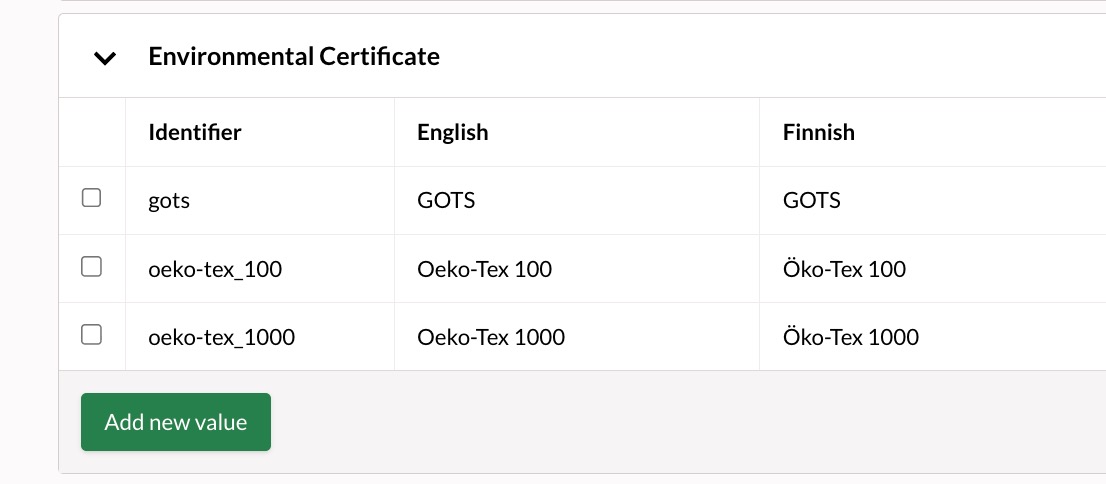
Finally, you can enable the product attribute as a product feature for products or variations. The product feature you specified will appear in the product feed when the feed is updated next time.
Examples
<g:product_detail><g:attribute_name>Environmental certificate</g:attribute_name><g:attribute_value>Öko-Tex 100</g:attribute_value></g:product_detail>- optional identifiers
- identifiers of standard attributes
- custom identifiers
Optional identifiers
An optional identifier for a product attribute is useful when the product feature does not correspond to any standard attribute supported by the product feed. You can format the optional identifier in any way you like (for example, the identifier for the Environmental Certificate attribute could be environmental_sertificate just as well as eco_certificate).
Identifiers of standard attributes
Certain product feed parameters correspond to the identifiers of the feed's standard attributes:
- color
- size
- material
- pattern
- condition
<g:color>blue</g:color>Custom identifiers
If you define a product feature for internal store use only (for example, to group products included in a discount campaign), you can use an a custom identifier as the product attribute identifier:
- custom_label_0
- custom_label_1
- custom_label_2
- custom_label_3
- custom_label_4
If a product attribute uses an custom_label identifier, the identifier of the attribute value is also included in the feed as a separate element. As identifiers for attribute values, for example, outlet and spring_2025 would appear in the feed as follows:
<g:custom_label_0>outlet</g:custom_label_0><g:custom_label_1>spring_2025</g:custom_label_1>Shipping countries
The product feed automatically uses the store version's language and default currency. By defining the delivery countries in the settings, you can provide the customer with more information about the product.
The list below shows the countries where you can advertise your products using the Google product feed. You can target an English store version product feed to any selectable country, but depending on the target country, product feeds from store versions in other languages may also be possible (alternative languages are mentioned in parentheses).
- Netherlands (Dutch)*
- Australia
- Belgium (Dutch, French)*
- Spain (Spanish)
- Ireland
- Italy (Italian)
- Austria (German)*
- Canada
- Greece
- Latvia
- Lithuania
- Luxemburg
- Portugali (portugali)
- France (French)
- Sweden (Swedish)**
- Germany (German)
- Slovakia
- Finland (Finnish, Swedish)**
- Denmark (Danish)
- Estonia (Estonian)
- United States
* you must offer home delivery for the products on offer.
** you must offer home delivery or pickup from a pickup point for the products on offer.
If the language of the product feed is suitable for advertising in multiple countries, you can target the same product feed to all of them. For example, you can target a German-language store version product feed to both Germany and Austria.
If a country or language you are interested in is missing from the table, please contact the MyCashflow customer support via the admin panel's chat feature, for example. We can explore the possibility of expanding language and country support.
Specifying the language and currency of a product feed
You can specify the language and currency of your product feed according to the target country, which will make your ads more efficient in this country.
Here's how to specify the language and currency according to the target country:
When you specify store version settings according to the instructions above, your customers will see the same information and prices both in the ads that appear in Google networks and in your online store.
Updating the product feed
Product feeds are updated automatically once a day in the early morning. Changes made to products in the online store or additions or deletions of products are therefore not immediately visible in the feeds.
You can also update the product feed manually on the admin panel's page by pressing the  button next to the feed to be updated. You can update the feed once every 30 minutes.
Online store policies checklist
- terms and conditions
- payment methods and payment fees
- a return policy that makes clear:
- how to return products
- return costs
- return requirements concerning products (original packaging, only unused products etc.)
- processing times
- refund policies.
Also see the ad policies for Google Ads and Shopping.
Enhanced conversions
The Google Ads enhanced conversions provide online stores with an effective way to measure conversions and identify buyers even in situations where cookie usage is restricted. This feature improves the accuracy of conversion tracking and enhances the optimization of price offers, which can improve the cost-effectiveness of advertising.
The MyCashflow Tuotemainokset-palvelusupports enhanced conversions, but the feature must be enabled in Google Ads management:
With the setting enabled, the enhanced conversion data are included in all future conversion events.
Google conversion tracking events
With conversion tracking, you can determine, for example, how many customers have come to your online store by following an ad link seen on Google's channels and then placed an order.
If the conversion settings have been disabled in the Product Feeds extension, tracking may come from other extensions in use (e.g., Google Ads or Tag Manager).
Google conversion tracking consent mode is denied by default. In order to obtain user consent, you must implement a consent management tool.
The easiest solution for managing consents in an online store is MyCashflow's Cookie and Consent Management service, which you don't have to maintain yourself.
Read more about consent management options:
Conversion tracking covers the following event data from the browser:
| Event name | Event description | Parameters |
|---|---|---|
| Conversion | completing an order | aw_feed_country
aw_feed_language
aw_merchant_id
coupon
currency
items item_id discount item_brand item_category item_name item_variant price quantity
new_customer
send_to
shipping
tax
transaction_id
user_id
value
|
| ViewItem | viewing a single product | items item_id google_business_vertical id
send_to
value
|
| ViewItemList | product list view | items item_id google_business_vertical id list_name name price quantity
send_to
|
In connection with conversion events, the following user information is transmitted, if available:
- email address (distributed)
- phone number (distributed)
- first name (distributed)
- surname (distributed)
- street-address
- city
- postal-code
- country
Activating campaigns
By default, campaigns created during the extension setup are paused and must be activated separately in the settings of the Shopping Ads extension:
- Set the campaign as active by using the Campaign active toggle.

For the first 3-4 weeks, Google's machine learning algorithm is going to collect information necessary for the ads. During this period, your ads' performance may not be at its best.
Changing a Performance Max campaign's daily budget
Your daily advertising budget doesn't set a strict upper limit on consumption per day, but rather specifies the average daily cost of ads. On a single day, the cost may be lower or higher, but in the long run, the daily budget won't be exceeded.
The upper monthly limit is calculated by using the formula daily budget x 30.4.
Here's how to set a daily budget:
Reports
The Shopping Ads service includes reports for all of your online store's Shopping campaigns that are maintained by the service.
Performance Max campaigns
You can keep track of all of your Performance Max campaigns' results directly in your online store's admin panel with account- and campaign-specific reports.
You can find the Performance Max campaign reports on the admin panel's page.
The reports cover only the Performance Max campaigns that are managed via the Shopping Ads service.

Other campaigns
- conversion count
- total conversion value
- average cost-per-click
- advertising revenue (ROAS)
The report will also include comments from MyCashflow's expert on the development measures taken and their effects, long-term trends as well as recommendations for further development.
