


With the Syncle extension, you can add product videos automatically retrieved by the Syncle service to your online store's product pages.
Also familiarize yourself with the service's own user instructions.
Extensions are not available in MyCashflow Free plan.
Read more about the Syncle service on our website.
Pricing
Using the service is subject to fees. During the setup of the service, you will receive an offer that outlines the costs of the service for your online store.
How does Syncle work?
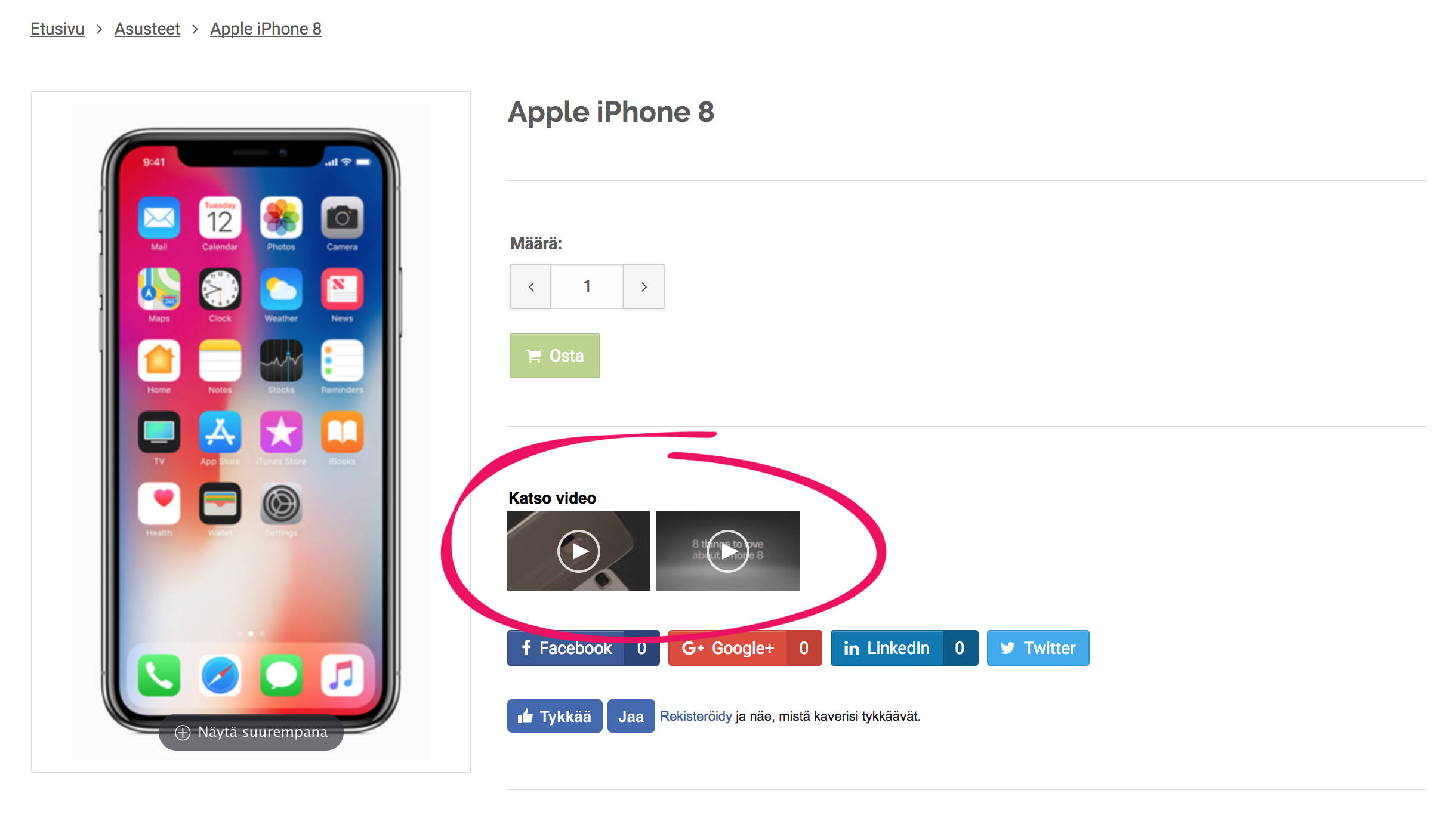
You can manage Syncle's functionalities by logging into the Syncle portal at https://run.syncle.com/
In the portal, you can add your own videos to products and filter out unnecessary ones.
Installation and setup
The extension is now ready to use.
Next, you need to add theme-support for the videos found by Syncle.
Adding theme-support for Syncle
The default theme of MyCashflow does not include built-in support for Syncle.
To add support, you must use HTML/CSS languages and MyCashflow's Interface markup. If you're not familiar with modifying themes, contact the designer of your store theme or the MyCashflow customer service.
To display the videos fetched by Syncle on your online store's product pages, you need to add the {VideolyVideos} tag to the section of the store's theme where you want the videos to appear.
Also make sure that your store theme contains the {Extensions(for: 'body')} tag in the page's <body> element. The tag prints the script used by Syncle on the page. Alternatively, you can add the Syncle script to the page using the {VideolyScript} tag.
