

You can define attributes for products and variations, such as color and size, based on which the system creates product attribute-specific filters for product lists in the online store. The features are also visible on the product pages.
Product features in the online store
In the default theme, product features function as filters in product lists, allowing visitors to narrow down the content of the product lists.
All product lists in the MyCashflow default theme support product filters.

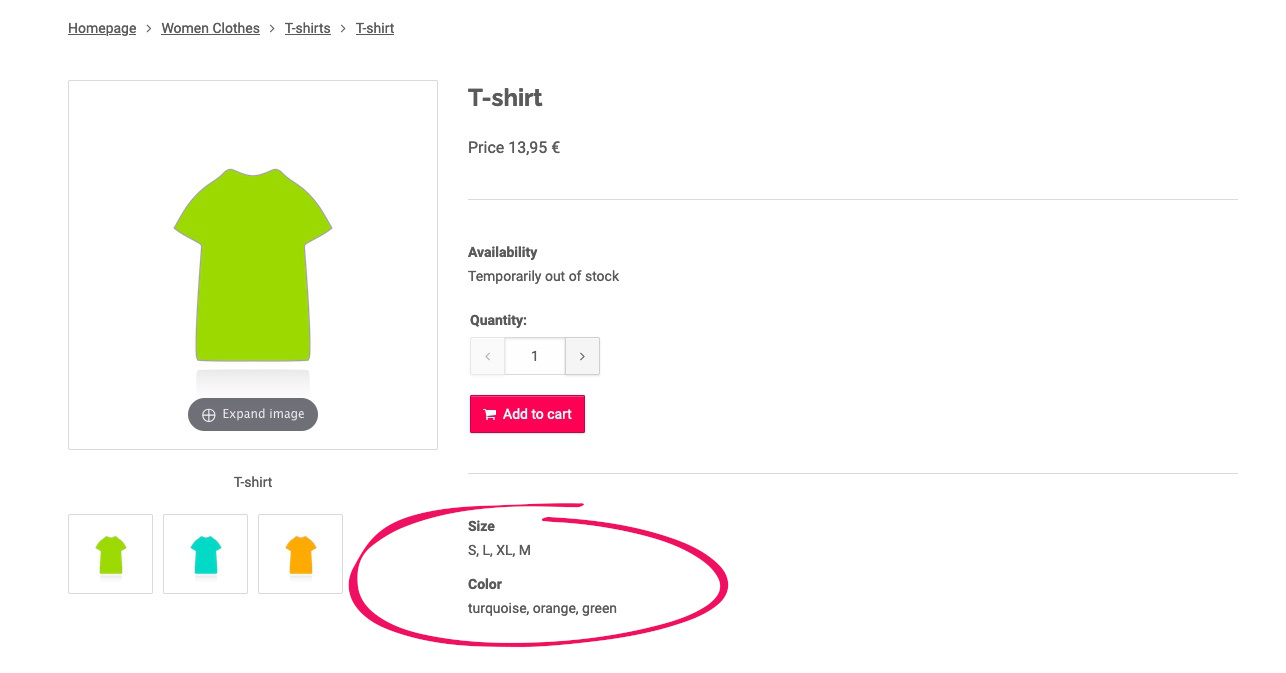
Additionally, the default theme's product page includes a list of all product features assigned to the product.
- specifying product attributes
- linking product attributes to products and variations as product features
- when necessary, adding support for product filters to the store theme
Adding theme support
Filters must first be implemented in the store's theme, so that they can be used in the store.
In the default theme of MyCashflow, all product lists have product filters, and they are automatically enabled unless the default theme you are using has been installed in the store's file directory. If you are using a default theme located in the file directory or your own customized theme, the product filters must be installed separately into the theme.
See the Designer's Guide for instructions on how to implement product filters.
If you don't have any experience in editing your theme's HTML/CSS/JavaScript files, contact your theme's designer or our customer service.
Default attributes
MyCashflow contains the following default product attributes:
- product category (not enabled on campaign and brand pages)
- brand (not enabled on product brand pages)
- size
- color
- material and pattern (available only in online stores with the Shopping Ads extension enabled)
- material (with the product attribute code material)
- pattern (with the product attribute code pattern)
Product category and brand filters are automatically generated based on the online store's product categories and brands.
Additional product list filters
In addition to filters based on product attributes, you can define additional filters for product lists based on price and availability. The additional filters you have set are available on the public side of the online store in the product list's Other menu.
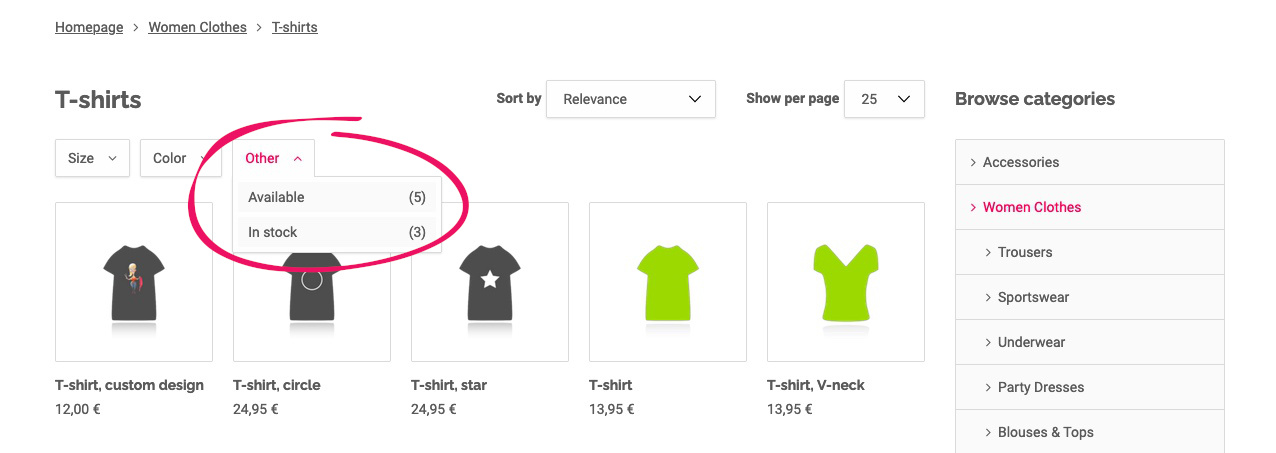
In the admin panel, you can define the available additional restrictions in the Available restrictions section of the page. You can define the following additional filters:
- Discounted
- Regularly priced
- Available
- In stock
- Pre-order
Managing product attributes and filters
You can define the product attributes of the online store yourself and manage the store's product filters formed from the product features.
You can manage product attributes and filters on the admin panel's page.
The use of product features is subject to the following restrictions, depending on the plan:
- Basic: You can create up to 3 custom product attributes and display the same amount in the online store.
- Advanced or higher: You can create up to 100 custom product attributes and display up to 10 product filters or features by default in the online store (if you want to display more, please contact the MyCashflow customer service).
It is possible to define up to 500 values for each product attribute.
Additionally, you can set additional product list filters based on the price and availability of products on the page section Available restrictions.
Adding product attributes
Here's how to add a new product attribute to your online store:
- Define the product attribute identifier, e.g., material.The identifier appears, among other things, as a filter in product list web addresses, so use only lowercase letters (no umlauts), numbers, and underscores.
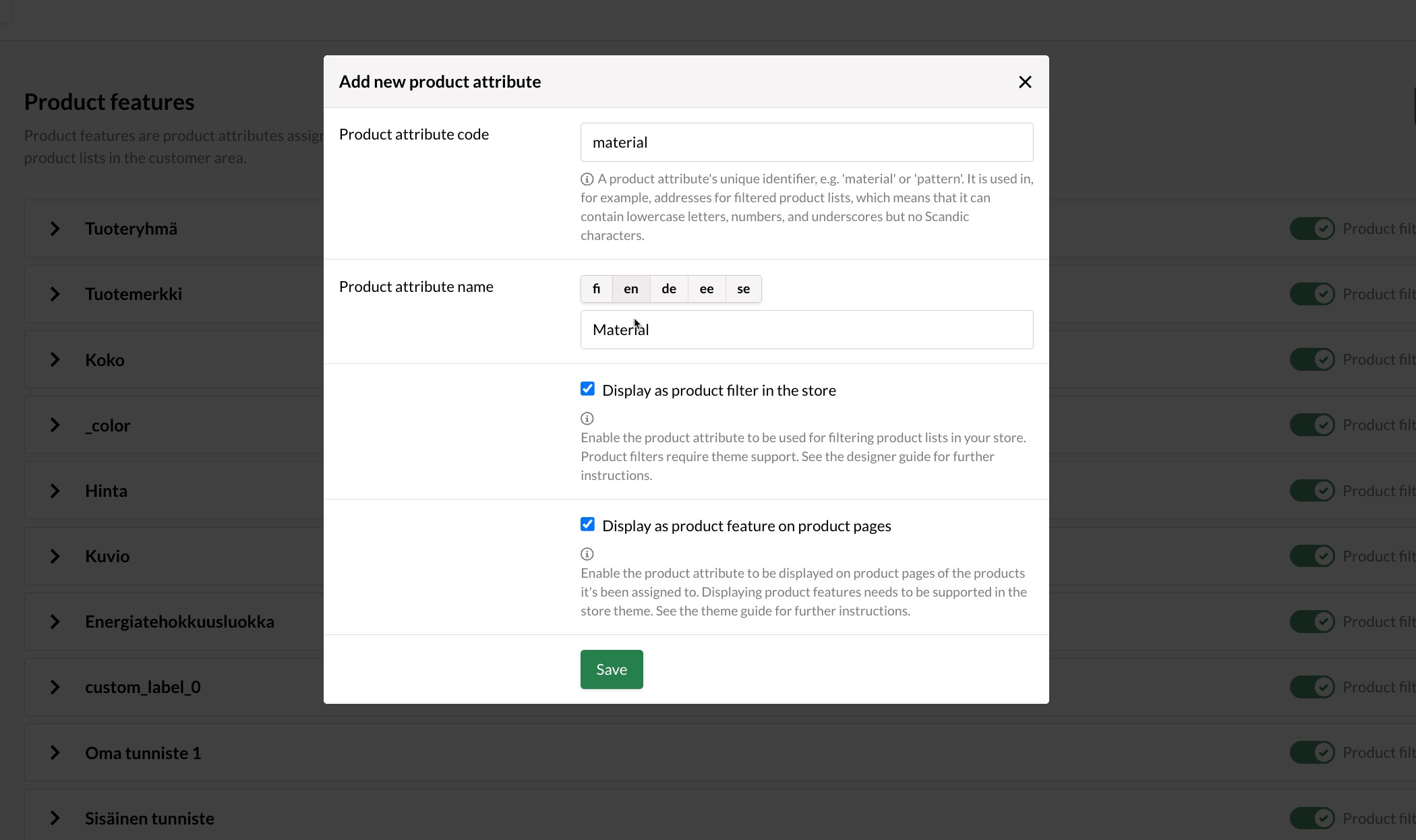
The product attribute identifier cannot be edited after saving. If you later want to use a different identifier, you need to create a new product attribute for it.
After you've created an attribute, you can specify its values on the page.
Editing product attributes
You can edit product attribute details and settings on the admin panel's page.
- Click the Edit link in the product attribute's heading row:

Sorting product attributes
Product attributes appear as filters in the online store in the same order as on the admin panel's page.
Sort product attributes by grabbing the Sort link in the product attribute's heading row and dragging the product attribute to the desired position on the list.
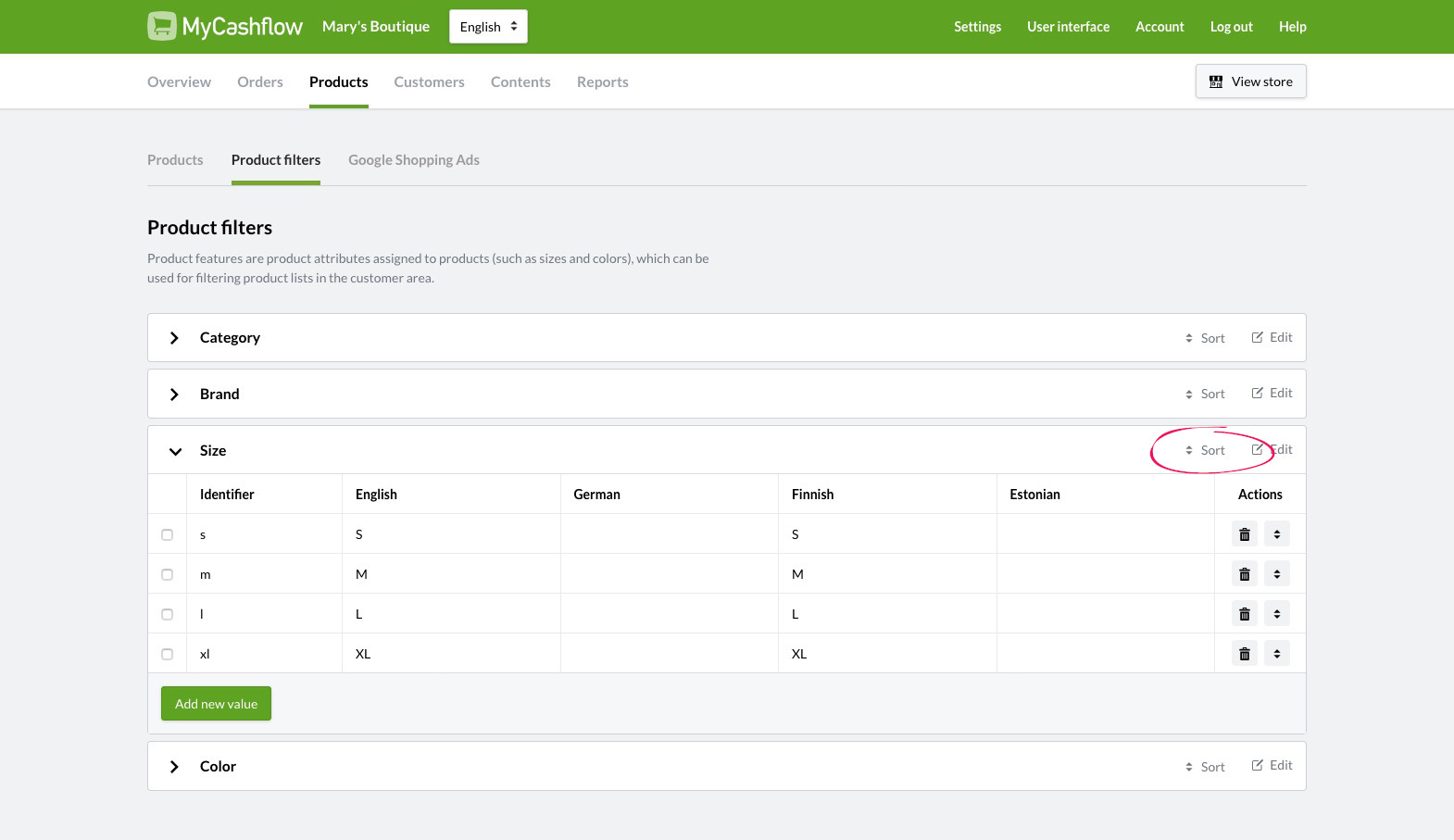
Once you have changed the order, it will be updated immediately in the online store.
Deleting product attributes
You can delete a product attribute you created by clicking the Delete link on the product attribute header row.
Default attributes cannot be deleted. However, you can hide them from all store versions by using the Display as product filter in the store and Display as product feature on product pages settings.
Hidden product filters and features are not visible in the store, but you can still use the values of hidden attributes on products and variations.
Adding values to product attributes
You can add values to the online store's product attributes as follows:
Once you have added the value, you can select it for use with products or variations.
Editing product attribute values
To edit the desired product attribute value, click on it in the table on the page.
When you change a value, the change is immediately updated for all products and variations where the value is in use, as well as in the store's product filters.
Sorting product attribute values
The values of product attributes appear in the online store filters in the same order as in the table on the admin panel's page.
You can arrange the values by grabbing the  icon, which is on the right side of the value, and dragging it to the desired position in the table.

Deleting product attribute values
Remove the value from the attribute by pressing the  icon, which is located on the right side of the row in the table on the page.
Deleting cannot be undone.
When you remove a value, it is immediately removed from all products and variations, as well as from the online store's product filters.
Using product attributes with products and variations
In order to use product attributes as product filters in an online store, the attributes must first be linked to products and variations as product features.
Linking product attributes to products
Once you have added the necessary product attributes to the online store, you can enable them as product features.
- Add a suitable product feature with its value to the product form's Product attributes section as follows:

After you've defined the product's features, customers will be able to find the product in your online store by using filters. If a list of features has been added to the product page, the selections will also be visible there.
Linking product attributes to variations
You can also define product features for individual product variations.
- Select the product attribute and its values from the variation form's Product attributes section.

After you've added product features to a variation, your customers will be able to find the variation's main product by using the filters in your online store.
Defining sizes and colors with product features and variations
You may want to define colors and sizes by combining product features and variations (especially if every variation has their own stock balance).
By using product features, you can add filters to the store that help customers find, for example, all size S shirts. With variations, you can define the stock settings for different sizes and colors.
- Add a separate variation for each color and size combination.In this example, the variation splitter is used to form drop-down menus with the variation's selectable features on the product page.

As a result, a product could have the following variations:
- Size: S | Color: Red
- Size: S | Color: Blue
- Size: M | Color: Red
- Size: M | Color: Blue
