

This page goes through how you can add and edit product categories.
To create a new product category in your online store:
If you want to edit a previously created product category, open its details from the Product categories menu and press the button on the presentation bar. Make the desired changes in the form and press the button at the end of the form.
Fields in the product category form

- Name: Give the product category a name that clearly describes what kind of products it contains. The name of the product category will be displayed in your online store's menu, so you can use it to help your customers navigate your store.
- Show in version: Select the store versions to which the product category belongs.
If you do not select any store version, the product category will not be visible on the public side of your online store. Also, the products in the category will not be able to be found with a search engine.
- Description: Provide a short presentation of the product category, in which you describe its products in general.
A carefully crafted introduction text improves the search engine visibility of the product category and helps create an expert image for your online store.
With the default theme, the introduction and campaign image are visible at the top of the product category page.
- Location in menu: Choose whether the product category is directly classified under the online store's frontpage or under another product group. You can reorder the product categories at any time.
- Display type: The view determines what the product category looks like on the public side of the online store. The appearance and properties of the two display types also depend on your store theme.
You can choose from three different views:
- Homepage: Used only on the front page, i.e., the top-level product category of the store version. With the default theme, you can add several different product lists to the front page.
- Product list: This only includes a list of the category's products and product bundles.
- Display window: This is intended for product categories that include subcategories, and to showcase selected products from them. You can set the display window for example for the product category Clothes, whose subcategories are Skirts, Trousers, and Shirts.
- Featured category: You can mark the product category as featured so that it will be displayed on lists of featured product categories. With the default theme, they appear on the front page and in the product categories of the display window type.
- Campaign image: You can set a campaign image for the product category, which will appear at the top of the category page in the online store (or with the introduction text on the front page of the online store).
- Campaign link: If you enter a URL in this field, the visitor can navigate to the link's destination by clicking the campaign image.
- External identifier: If the product category has its own identifier in an external system or integration, you can enter it in this field.
With the help of an external identifier, you can, among other things, add the product to the correct category in an external system (even if the location of the category in the category menu changes) and synchronize the product category tree with another system.
Search engine optimization
If you have installed the Web Designer extension, in the Search Engine Optimisation section you can specify the document and page titles and meta description that will appear in search engine results. (Find out more about optimizing your MyCashflow online store for search engines)
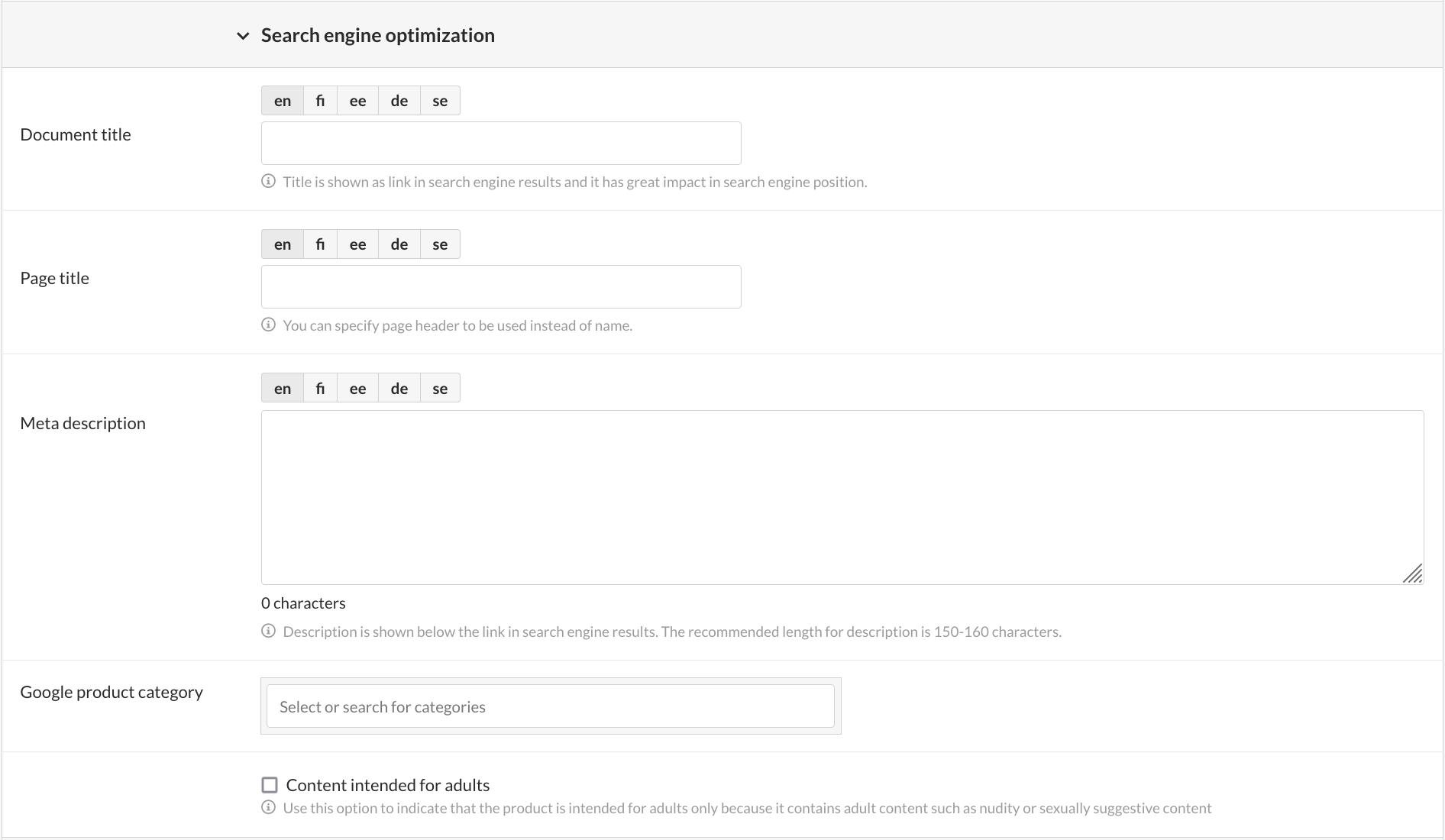
The page title serves as the content header on the online store's product page, while the document title is included in the tab label at the top of the browser window or below the address bar. If you leave the title empty, MyCashflow will use the product name as its substitute.
In addition to search engine optimisation, you can set a Google product category for product feeds or ads and, if necessary, mark the product as adult content.
Template file
If your online store has the Web Designer extension, you will also see the a Template file section on the form, where you can choose an alternative page template (if one is included in the store theme).
Learn more about creating custom templates.

