


With this service you can enable the Kustom Checkout solution in your online store.
All MyCashflow online stores have built-in support for Kustom Checkout. You can easily subscribe to Kustom Checkout through the MyCashflow admin panel.
Read more about Kustom on our introduction page.
Kustom is the former Klarna Checkout and has automatically replaced it in MyCashflow online stores on June 17, 2025. Klarna Payments, on the other hand, continues as a separate payment service, which is still available also through the Kustom checkout.
How does Kustom Checkout work?
At Kustom Checkout, the customer first enters the delivery country, postal code, and email address. If the customer has previously made a purchase using Kustom Checkout and their information is saved, Kustom can automatically fill it in at checkout. The system also automatically fills in a logged-in customer's information at checkout.
After providing the address information, the customer can choose the payment and shipping method and proceed to pay for their order. In some cases, the system requests the customer's personal identification number to verify creditworthiness.
When the customer has confirmed the order, the Kustom thank you page opens.
At Kustom Checkout, you can use certain external and MyCashflow's internal payment services.
Pricing
Each payment made with Kustom Checkout is subject to a percentage-based and fixed commission fee charged by Kustom.
Installation and setup
Ordering new credentials
- Go to the page on the admin panel.
- Click .
- Fill in your personal and your online store's details in the order form and click .
Kustom will process your subscription and notify you within 48 hours of order acceptance.
During the setup, Kustom will send you an email survey about the company's actual beneficiaries to prevent money laundering and other abuses. You must respond to the survey in order to receive Kustom settlements.
Once your subscription has been accepted, you can continue configuring the Kustom Checkout settings on the page .
Using your old credentials
If you already have Kustom credentials, you can use them in MyCashflow by entering them in the Kustom Checkout settings.
Once you have entered your credentials, you can continue setting up the Kustom Checkout settings on the page.
Kustom Checkout settings
Once you have enabled Kustom Checkout, you can configure the settings for the service on the page .
Credentials
In the Credentials section, you can see the credentials used by the checkout solution.
If you'd like to change the credentials in use, contact our customer service.
Store versions
In the Store versions section, you can select in which store versions Kustom Checkout is enabled.
Versions using Kustom Checkout must have SSL encryption enabled. Otherwise your online store's checkout won't work.
In the selected versions, the Kustom Checkout replaces the default MyCashflow checkout.
Activating Kustom Checkout hides all other payment methods in the store version.
If you want to use MyCashflow's internal payment methods such as Invoice, Advance payment, or Cash-on-delivery or PayPalat Kustom Checkout, please contact the MyCashflow customer service.
Shipping methods
Kustom Checkout only displays shipping methods that are set to be visible in the same version as Kustom Checkout.
You can also specify additional shipping information and delivery time details for the shipping methods used with the Kustom Checkout.
Summary
The summary section lists the available delivery methods for use with Kustom Checkout by store version.
The Show in selected versions toggle allows you to disable Kustom Checkout in all store versions.
Activating payments
In order for Kustom to transfer the payment to the online store's bank account, the payment must be activated.
Payments must be activated before they expire.
Kustom payments expire after a certain period of time. The payment expiration date is shown on the order page's Payment transactionssection and on the Kustom Merchant Portal page.
If the payment is overdue, it is not possible to complete the order using Kustom. However, you can create a new payment transaction for the order using a different payment method.
Once you have opened the desired order from the admin panel's page, you have the following options to activate the payment:
- Activate the payment manually by clicking the Activate payment link in the transaction tool menu:

If the order is paid in a currency other than the euro, the transactions will also show the exchange rate.
Checking the status of payments that have not been approved.
If a payment is overdue or the subscription is canceled, the payment will automatically move to Cancelled status. In certain cases, it may be possible to change the payment status in the Custom merchant portal.
You can ensure that the payment status on the subscription page of the admin panel is up to date by clicking the Check payment status link in the transaction tool menu:

The payment status updates immediately.
Resending payment instructions
Canceling reservations
If a customer has made an unwarranted payment, you can cancel it in the online store's admin panel even before activation by selecting the Cancel reservation option from the Payment transactions menu on the right side of the order page.
When you cancel a customer's reservation, the payment status changes to Cancelled. In such a case, the customer won't be charged at all.
Refunds
You can refund payments made with Kustom services to the customer directly from the order page in the admin panel. Refunds are always processed automatically using the same payment method the customer used for the transaction.
Making a full refund
If you want to charge the customer, for example, return fees, do not use a full refund, even if the customer returns the entire order.
Here's how to refund the whole payment to the customer:
- Find the refundable amount on the right-hand side of the order page in the Payment transactions column.

Kustom refunds the customer in full using the original payment method.
Making a partial refund
If a customer returns only part of the products they ordered, you can refund the necessary portion of the customer's payment directly from the order page in the admin panel.
- First, process product returns, as normal.
Once you have made the changes required for the return, the order total will change and a notification of overpayment will appear at the top of the order page.

Kustom returns the amount you specified to the customer using the original payment method.
Editing order products
In orders paid with Kustom Checkout, it is possible to modify the product content depending on the customer's country and the payment method used for the order. Orders paid with Kustom payment methods are subject to certain restrictions, which are outlined below. You can freely edit the content of orders paid with services other than Kustom.
The payment method used by the customer appears in the Payment transactions drop-down menu on the right side of the order page.
Depending on the customer's country and the payment method used, the following changes to the order are possible beforethe activation of payments:
- modifying product prices, quantities, and tax rates
- adding and editing products
- modifying delivery and payment costs
- modifying the order discounts.
In some situations, Kustom rejects changes if they would increase the order total.
Kustom reviews the changes you make and approves or rejects them based on the customer's credit information. The inspection takes place immediately, and the Kustom system returns the result as soon as you have modified the order's product content. After approval, the amount to be paid and the order details in the Kustom merchant portal are updated automatically.
After activating the payment, you can freely edit the prices, quantities, and tax rates of order products. Activation of payments is only possible if the amounts match in the admin panel and in the Kustom merchant portal.
When you add products to the order, you must create a new transaction for the changed order amount using a service other than Kustom. When you remove or return products, you can refund Kustom payments directly from the order page.
Editing Payments in the Kustom Merchant Portal
You can also edit payment amounts in the Kustom merchant portal, and the changes will automatically update in your admin panel.
Only the payment amount can be modified in the Kustom merchant portal. Changes made to individual product lines in the merchant portal do not update in the online store.
Selling with local currencies and payment methods
In the Checkout settings section, you can specify the countries to which you want to sell using local currency and payment methods.
- Switzerland
- Denmark
- United Kingdom
- Norway
- Sweden
- United States
Selling in local currencies requires that your Kustom account supports it.
If your Kustom ID does not support the currency you selected in the checkout page settings, the first attempt to use it at checkout will automatically disable the selection, after which the currency for payments will be euros.
If payment is not successful even in euros, ask the Kustom customer service to enable the Global setting for your account.
Selling in local currencies is only possible with Klarna Payments payment methods. MyCashflow's internal payment services and PayPal are available at checkout only when the currency is euro.
B2B sales
In addition to the regular checkout intended for consumer customers, Kustom Checkout includes a B2B checkout, whose functions are specifically designed for the needs of business, i.e., B2B sales.

You can enable B2B sales at Kustom Checkout via the page's Checkout settings section.
The Kustom Checkout B2B feature does not support international trade.
If your store sells products to a business operating in a different country, instead of Kustom Checkout, a suitable payment method could be MyCashflow Invoice, with which you can set prices to be displayed excluding VAT, just like in the store version intended for resellers.
Enabling B2B sales results in the following changes at checkout:
- The customer can choose to order as a company or as an individual.
- The B2B checkout is displayed automatically to logged-in business customers.
- Business customers:
- must provide a company name and business ID
- have the option to provide a reference number
- Finnish business customers see a VAT differentiation.
- Only the following payment methods are available at the checkout:
- anticipated payment
- cash-on-delivery
- card
- invoice
- PayPal
Shipping methods in the Kustom Checkout service
At Kustom Checkout you can set multiple additional details for shipping methods that are not currently available when using other payment services.
Setting delivery times for shipping methods
On the shipping method form, you can set delivery times for the shipping methods used with the Kustom checkout.

You can define the following settings:
- Delivery time: minimum and maximum delivery time
- Order before time: the order time before which orders can be delivered within the estimated delivery time
Setting additional information for shipping methods
You can add multiple additional details to the shipping method form or shipping method details, which will be visible at the Kustom Checkout alongside the shipping method.
You can set the following types of additional information for shipping methods in the Shipping features section of the shipping method form:
- Carbon compensated
- Eco-friendly
- Evening delivery
- Express delivery
- Recommended

Shipping methods at Kustom Checkout
In MyCashflow Kustom Checkout uses the Kustom Shipping Assistant, which presents shipping methods differently than the default MyCashflow checkout.

Here's an overview of how the checkout differs from the built-in MyCashflow checkout:
- The name of a shipping method does not appear in the shipping method menu, but rather the type of delivery service it uses (e.g., Posti Postal Parcel appears at checkout as Parcel locker).
- The shipping method displays the additional information and delivery time set for it, if these have been specified.
If your online store uses Pickup-type shipping methods, ensure that different pickup points are added to the settings of a single shipping method and not as separate shipping methods.
The Kustom Shipping Assistant is a paid service offered by Kustom, which in MyCashflow is included in the Kustom Checkout solution at no additional cost.
Customizing the design of the checkout page
The Kustom Checkout page is internal to MyCashflow, so it cannot be customized in the theme. However, you can define the logo and the colors of the elements visible at the checkout.
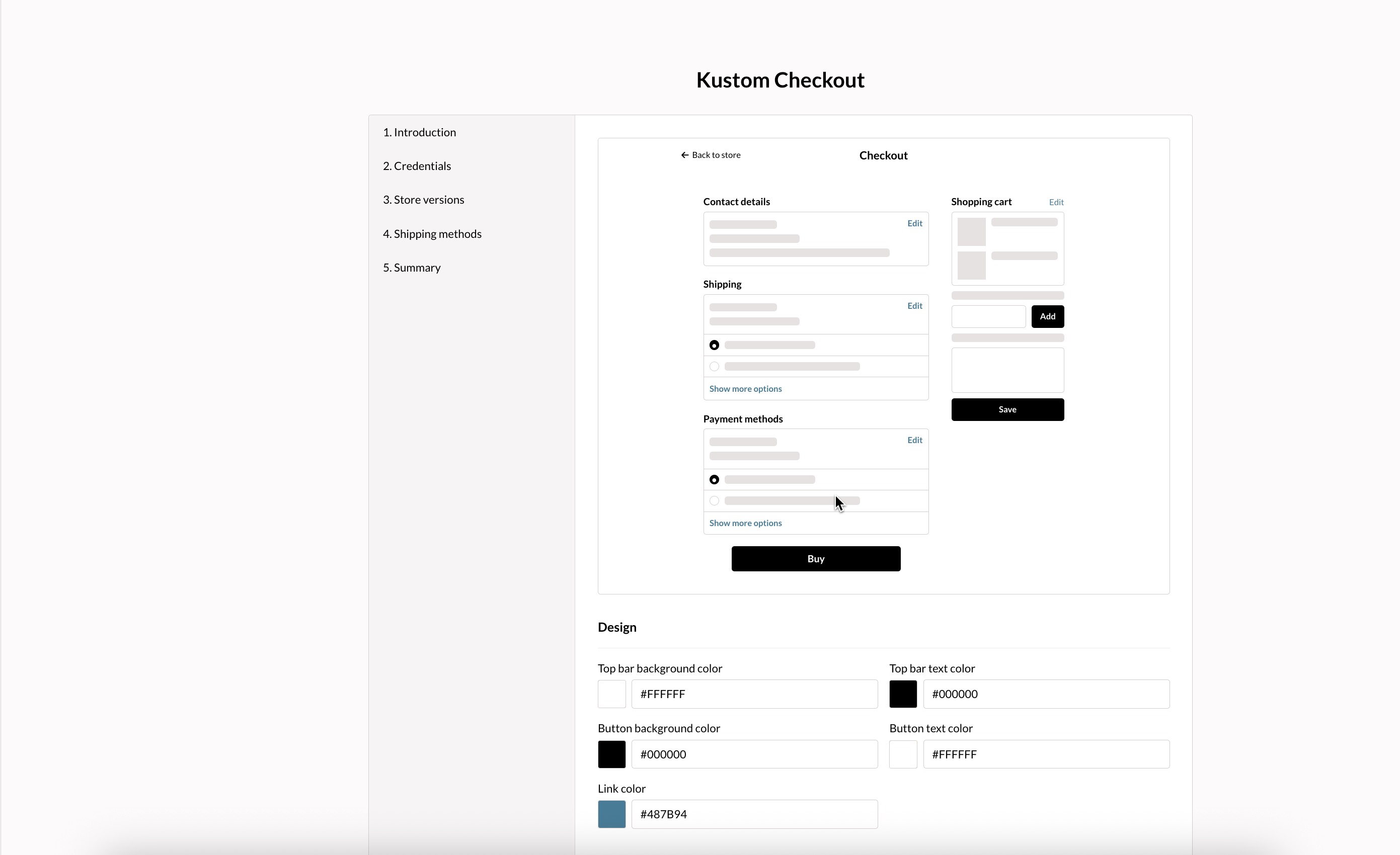
Colors
You can specify the colors for the following elements:
- the top bar background
- the top bar text
- buttons' backgrounds
- buttons' texts
- links
You can define colors in the Checkout settings section on the page by using the Hex color model.
Logo
You can specify whether the store's or the store version's logo is visible in the checkout header.
You can enter the store's logo in the general settings, and the store version's logo in the version's additional settings.
Using other payment services at Kustom Checkout
- Klarna Payments
- MyCashflow's built-in payment services:
- invoice
- anticipated payment
- cash-on-delivery
- PayPal
- Ropo One
If you'd like to use any of the above-mentioned services at Kustom Checkout, ask the MyCashflow customer service to add support for them.
- check the visibility of additional payment services on the page, and, when necessary, make the desired changes in payment method settings
- if you'd like to use PayPal, add a new PayPal payment method to your online store. The new PayPal implementation used at Kustom Checkout is automatically enabled when you create a new payment method or make a copy of an old PayPal payment method.
Currently, the new implementation of PayPal works only at Klarna's checkout, so make sure that the payment method isn't visible in any version that uses MyCashflow's checkout.
Using Klarna's on-site messaging banners in the online store
The banners for on-site messaging enable you to display personalized messages to customers registered with Klarna.
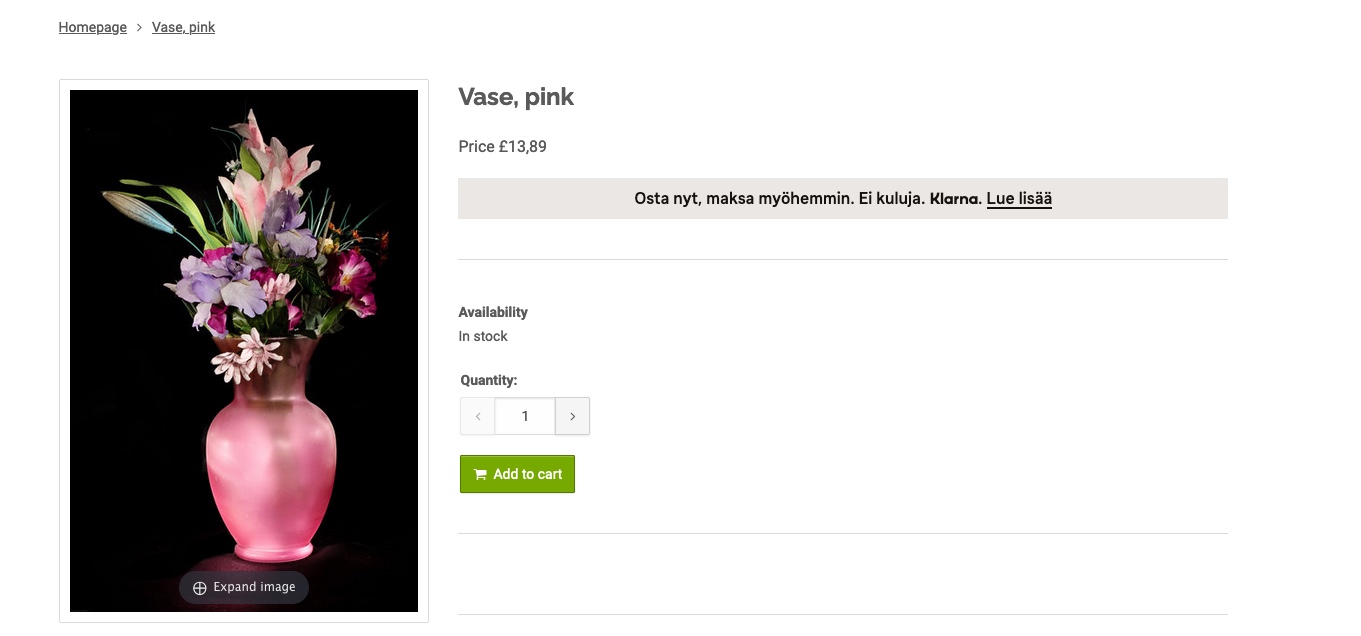
To learn more about on-site messaging banners, see Klarna's website.
Below, we go through the setup, installation, and management of banners.
Enabling on-site-messaging
- Copy the contents of the data-client-id field (e.g. 3eb846eb-a75c-5992-bca9-4ae2cd0bae25) included in the script.

- Paste the identifier you copied into the On-site messaging section's Client ID field.

You can now install on-site messaging banners at any location in your online store.
Installing on-site messaging banners in your online store
Installing on-site messaging banners requires modifying the theme's HTML files. If you're not familiar with modifying themes, contact the designer of your store theme or our customer service.
Install Klarna's on-site messaging banners in your online store by adding the <klarna-placement> element anywhere in the theme where you want to display on-site messaging banners.
For instance, the product template (product.html) can be a good place for displaying banners.
You can find the placement tags for on-site messaging banners the Klarna Merchant Portal, on the page .
Managing on-site messaging banners
After enabling on-site messaging banners in your online store, you'll be able to manage them in the Klarna Merchant Portal.
