

Once you have set up the online store's content and settings, the it can be opened to visitors. This article also introduces more advanced features of MyCashflow, which can help you continue developing your online store.
If you have gone through the quick guide step by step, you have added to your online store.
- at least one product and a product category menu (it is good to add all sellable products to the store and finalize the menu before publishing)
- a selected theme
- payment methods
- shipping methods
- statutory contents and presentation
- basic settings for running the online store
- a test order that allowed you to become familiar with order processing.
Launching the online store
Once you have added all the necessary content to your online store and configured workable settings, you can open your online store to the public by using the Preview and publish the store feature in the upper left corner of the admin panel.
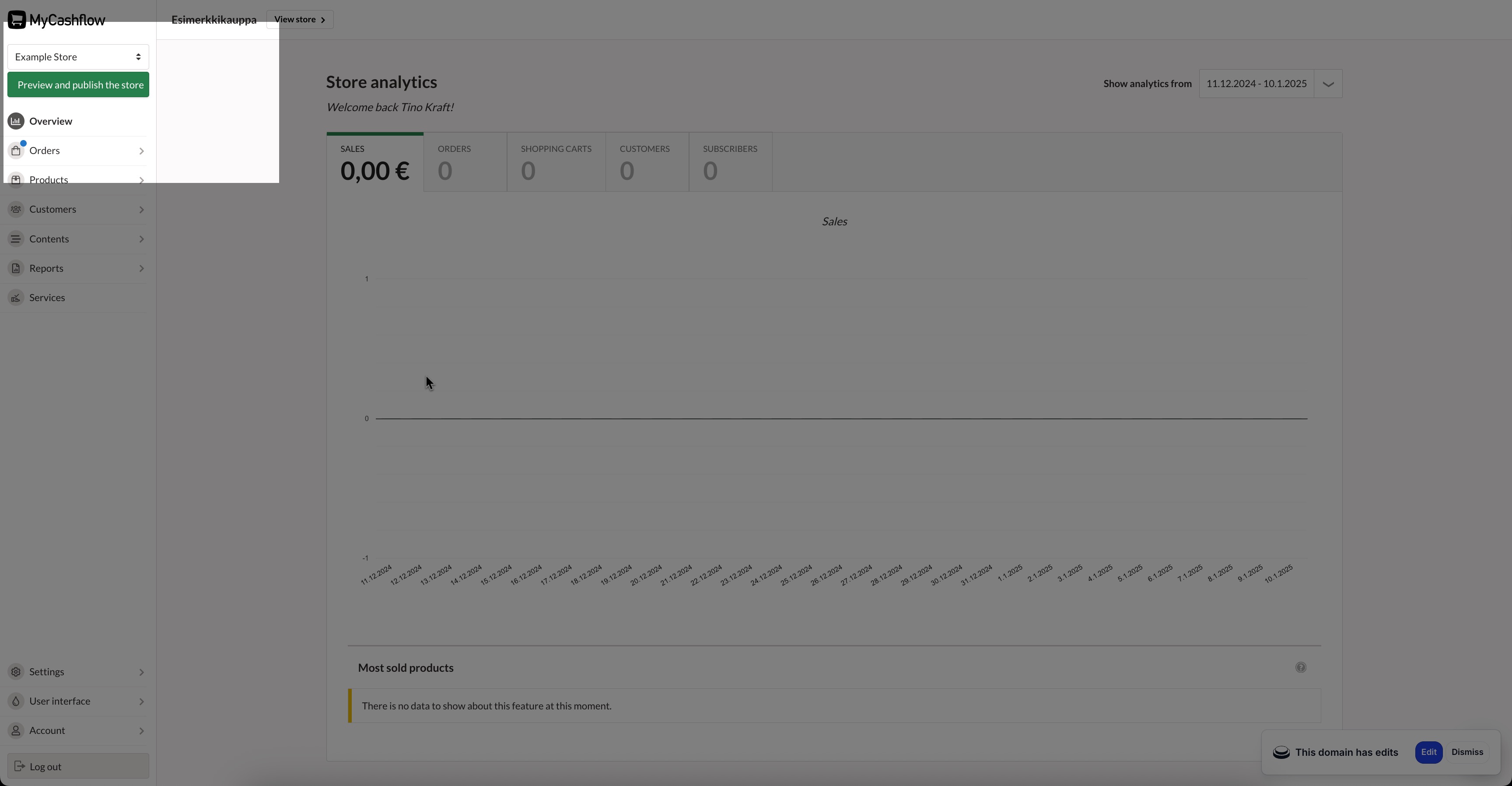
After publishing, the online store should be accessible to everyone. To test it, log out of the admin panel and go to your online store's customer-facing side.
If you still can't access the online store without logging in, check that the store is not set as temporarily closed in the general or version settings.
What next?
The quick guide is intended to create a simple and functional online store that can be used as a basis for selling and further development.
Below are further development suggestions and links to more detailed instructions contained in the user guide.
Product management options
In the quick guide, we created a simple product, so that you know the basic principles of adding products. However, MyCashflow enables you to create highly diverse products. Here are examples of other possibilities:
- You can manage the stock balance of your products in MyCashflow and, for example, set the product to stop selling automatically when it runs out of stock.
- With the help of product variations, you can create variants of a single product that differ based on attributes you define (e.g., different size options).
- With product customizations, you can add features to products that customers can tailor to their liking before purchasing (e.g., a printed text).
- You can create downloadable products that customers will have access to at the end of the order processing.
- With the help of product bundles, you can sell bundles of multiple products at a discounted price.
- With cross-selling, you can mark related and similar products that appear on the product pages of the online store.
Read more about product management options in the user guide.
Discounts and gift cards
With the help of campaigns, you can create discounts according to the conditions you set.
Additionally, you can create discount coupons that you can designate to customer groups or individual customers.
You can also create and sell gift cards in your online store by creating gift card products.
Product reviews
You can install the Product reviews extension in the online store, through which customers can leave star ratings and written reviews for the products they have purchased.
Customer registry and loyalty program
With the MyCashflow customer registry, you can manage individual customer's details and create customer groups.
By using customer groups, you can limit the content and features of your online store, for example, by creating payment methods available only to selected customer groups and targeting marketing and other communications by customer group.
You can also create a loyalty program for the online store, where customers can accumulate discounts for themselves.
Shopping Ads
With the Product feeds extension, you can automatically send your products to shopping and price comparison sites (e.g., Google Shopping, Facebook).
Additionally, MyCashflow offers a comprehensive growth marketing service, where our experts assist you in creating effective advertisements for these sites.
Content management, communication and advertising
You can publish current announcements as news. In the MyCashflow default theme, news are used to create a feed on the front page that is updated automatically.
In addition to news, you can use email marketing for communication and advertising.
Modifying the online store's layout
With the theme editor, it is possible to customize the appearance of the online store using ready-made theme settings, but it is also possible to develop a completely custom theme for the online store. This enables significantly broader possibilities for customizing the appearance and functions of the store.
Developing a theme requires HTML/CSS/JavaScript coding skills. The MyCashflow project team implements changes as paid projects upon request, but your own company's web developer or advertising agency can also handle the work.
The MyCashflow theme guide contains comprehensive information for modifying the theme's source code.
SSL encryption
SSL encryption makes shopping in your online store more secure and reliable. The SSL encryption protocol prevents anyone from seeing information that moves between your online store and its customers during their visit to the store.
You can also order SSL encryption directly from MyCashflow.
Translating the online store to other languages
Most of MyCashflow's internal user interface texts have already been translated to numerous languages. If you sell abroad, you may also want to translate your own contents. If you want, you can also modify the translations provided by MyCashflow so that they fit your purposes better.
To translate your store's content to other languages, you have to create new language versions of your store. With multiple language versions in use, you can translate for example the following content (and much more):
- Product, category and brand contents
- content pages
- Campaign content texts
- news
If you want to translate your online store to another language, read the following articles in the user guide:
Installing extensions
Extensions allow you to add new functions and features to your online store. Most extensions can be installed free of charge, however, some of them require signing up to external services that may have their own costs.
Here are some examples of features that you can enable with extensions:
- Shipping and storage services
- Web analytics
- Search engine optimization tools
- affiliate-marketing
- Integrations with financial administration software
- social media buttons.
