

This quick guide chapter covers the basics of using MyCashflow and other useful information for a starting online retailer.
MyCashflow is a SaaS based e-commerce system. The software is located on MyCashflow's servers and is not installed on your own computer or web hosting. You manage the functions and content of the online store with a regular web browser (such as Firefox or Google Chrome).
If you haven't opened your own MyCashflow store yet, you can start using the service with a free 30-day trial.
How does MyCashflow work?
The MyCashflow online store consists of two main areas:
- the public side accessible to customers, where they can browse and purchase the store's products
- The admin panel Flow intended for the merchant's use, where you define product information, process orders, and adjust the software settings.
Below is a brief introduction to both areas of the online store.
The public side of the online store
The public front page of the online store will be available at the store's default web address (in this example, STORE-NAME refers to the name of your store that you specified when subscribing to MyCashflow):
https://STORE-NAME.mycashflow.fi
Before the online store is launched, only the store's name or logo is visible instead of the homepage.
Once you have published your online store, customers can access the homepage, browse the store's selection and order products. Customers also have the option to create their own customer account in the online store, which allows them to view their order history and track the progress of their orders.
When you are logged into the admin panel, an admin bar appears at the top of every page of the online store, allowing you easy access to the functions of the admin panel.
The admin panel (Flow)
You can log in to the admin panel using a web browser by adding the name of the admin panel to the store's web address:
https://STORE-NAME.mycashflow.fi/flow
It is advisable to bookmark the address of the admin panel in your browser so that you can easily find it in the future.
Alternatively, you can log in at https://www.mycashflow.fi/kirjaudu
Initially, the admin panel displays the login page. Use the email address and password you set when opening the store to log in.
After logging in, an overview of the online store opens, providing information about your online store's sales, customers, and products.
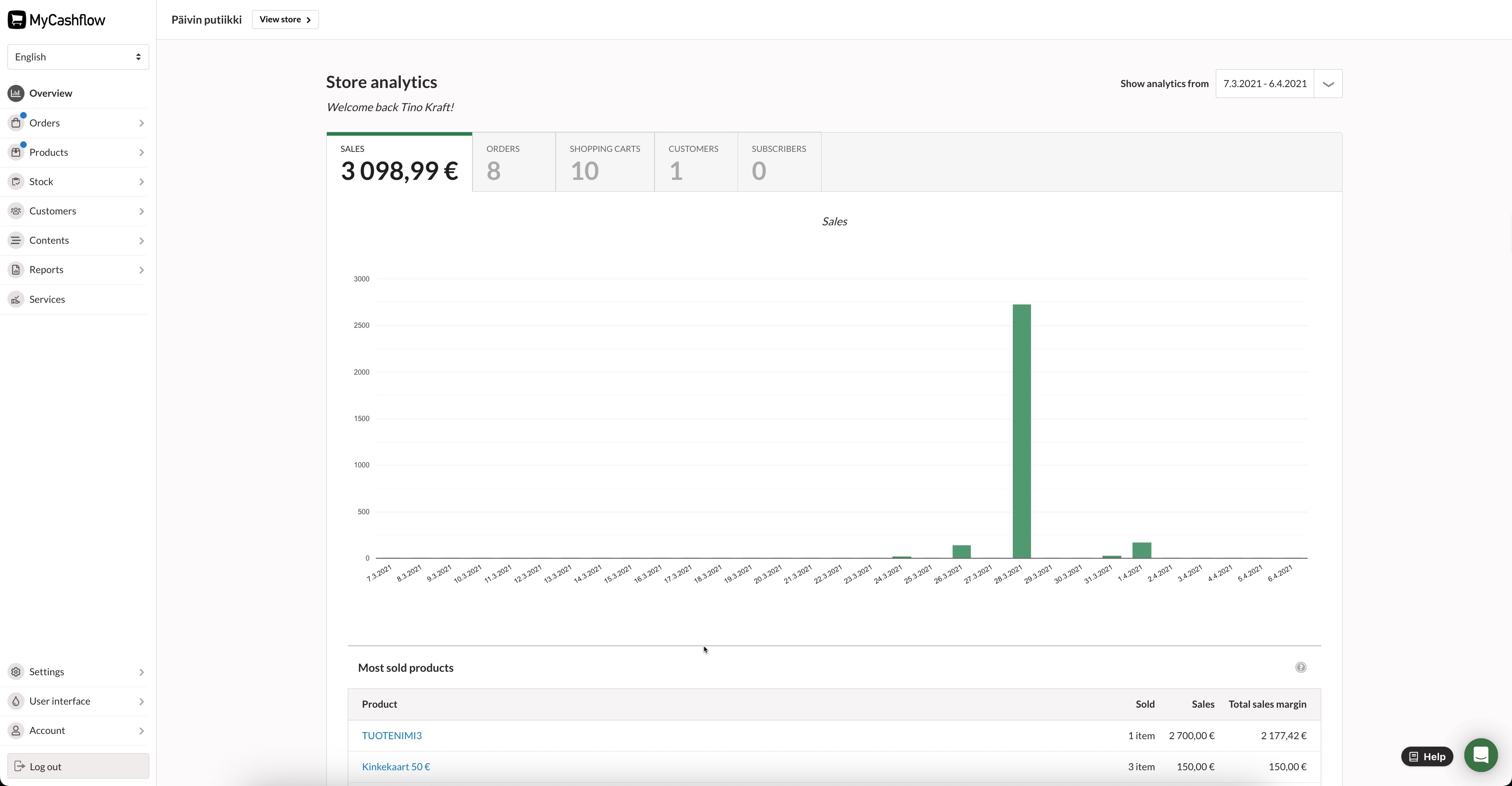
Through the navigation menu on the left side of the page, you can access the merchant functions and settings. The navigation menu is the same on almost all admin panel pages.
You can switch from the admin panel to the public side of the online store at any time by pressing the button at the top of the page. Here's how you can view and test your online store before you publish it.
Store versions
With the help of store versions, it is possible to add areas operating under different domain names to one online store, which can be in different languages, intended for different customer groups, or contain a different product selection.
By default, there is one store version in the MyCashflow store, but you can add parallel store versions, for example, for resellers or customers from other countries. Store versions can be in different languages and offer suitable shipping and payment methods for customers living in different countries. The product range may also vary by version.
The number of store versions in your online shop depends on the plan you choose. If you find that you need more store versions, you can upgrade your plan at any time.
Later in this quick guide, the use of versions will be discussed, for example, in editing the appearance.
Are you transferring from another service to MyCashflow?
Contact customer service and mention that you are transferring your online store from another system to MyCashflow. We offer assistance in the following tasks, for example:
- The MyCashflow customer service will link your old domain name to your new online store free of charge for redirection.
You can also order new domain names directly from MyCashflow. This is a paid additional service where MyCashflow takes care of the registration and maintenance of the domain on your behalf.
The store's own domain serves as the address for customers to access the online store. You must always log in to the admin panel through the address in the format https://STORE-NAME.mycashflow.fi/flow.
To use your own domain, the store must have at least the MyCashflow Basic plan.
- The MyCashflow customer service can help transfer your online store data from another system automatically.
You have CSV import available for mass operations, but if the CSV format is not possible for import, we can explore other options.
- MyCashflow's theme developers can help create a customized appearance for your online store.
You can also easily customize the appearance yourself using the graphical theme editor, but customizing the theme's HTML/CSS/JavaScript code opens up more versatile ways to implement the store's appearance and functionalities.
Where do I find help?
If anything is unclear to you while using the system, you can search for answers in the following sources:
- In the admin panel, you have access to a customer service chat where we will respond to your questions as soon as possible. You can also contact our customer service via email or phone.
- The user guide comprehensively covers the features of the e-commerce system.
- In the frequently asked questions, there are solutions to the most common problems.
- Guides for e-commerce and MyCashflow's blog contain general instructions and tips for online retailers.
- In the MyCashflow merchants' Facebook community, you can ask about the experiences of other MyCashflow users.
- Remote training delves into various e-commerce management tasks (e.g., marketing, analytics, and trading functions).
Explore the training offerings and reserve a spot in the remote training of your choice at a time that suits you.
