

In this quick guide chapter, we will go through how to define the basic information of the store, the notification email, contact information, and the billing settings of your MyCashflow account.
If you leave the settings introduced in this section undefined, you will likely encounter errors in the operation of the online store later.
Store settings and contact information
- Define at least the following points in the General settings section:
- Store name: Enter the online store's name that will be visible to customers. If your company has a different name, you can enter it in the contact information below.
- Logo and Favicon: If you have an image file of your store's logo, select it from your computer in these fields.
The logo is visible to customers, for example, in the online store's header and on printouts. A favicon, on the other hand, is a square-shaped small (512 x 512 px) image that appears in the web browser's address bar as the tab icon. It may be smart to design it separately based on the logo.
- Email: Select the email address that sends and receives the store's automatic notifications.
For example, when a customer places an order in your store, the system sends a notification to this address. When you mark the order as shipped, a shipping confirmation will be sent to the customer from this address.
The default email address for automatic notifications is the same as the one you used when registering. If necessary, you can add another address to the email settings for automatic notifications and then select it.
The best option for sending emails is to use an address with your own domain (e.g., info@store.com).
The delivery of messages cannot be guaranteed with addresses from publicly available services such as Gmail and Yahoo Mail. If you used, for example, a Gmail address to register, notifications will be sent from the system's own no-reply@mycashflow.com address.
You can order Google's email services that use your own domain from MyCashflow.
See the order form and additional information about the service.
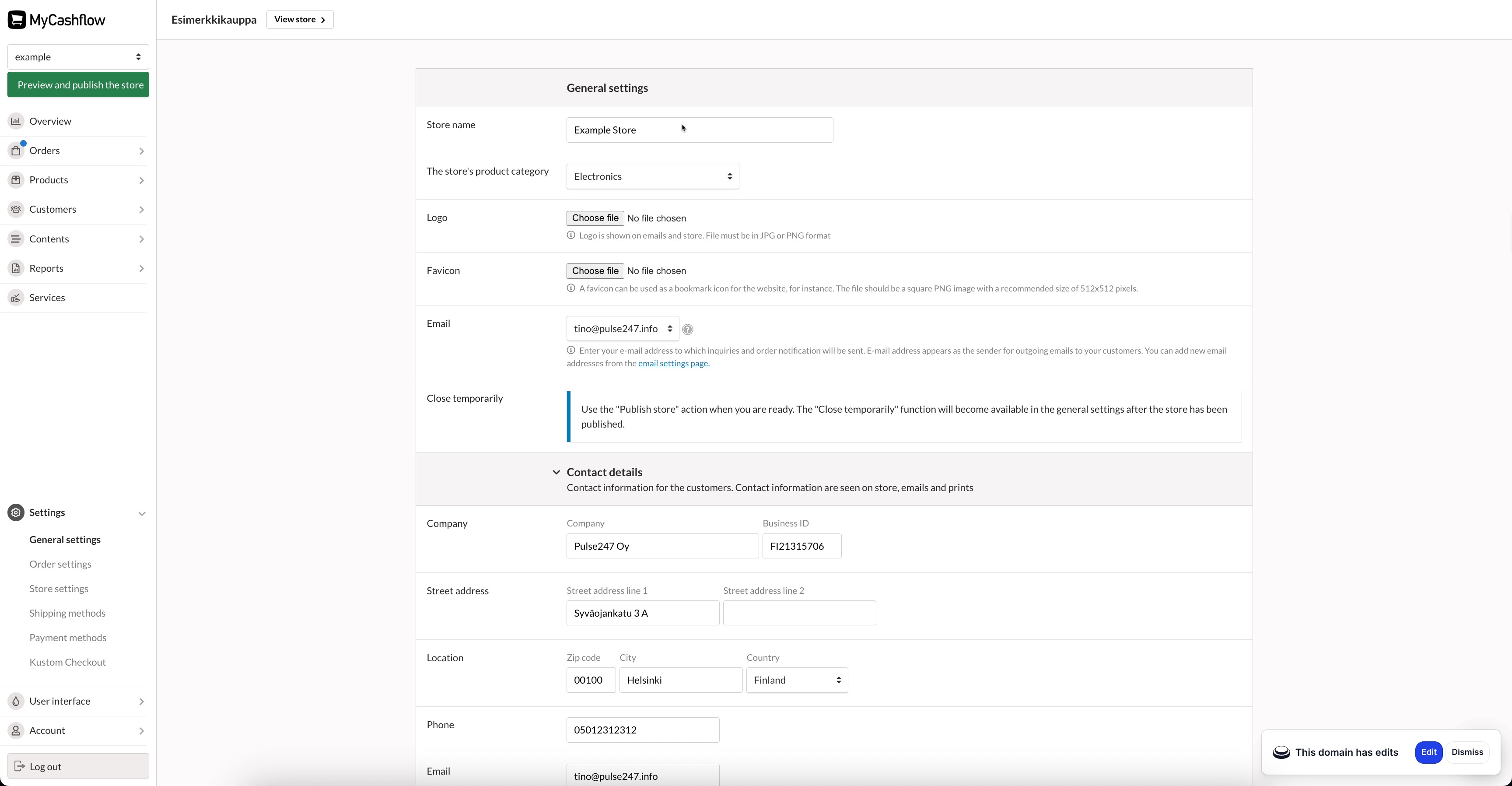
You can disregard the other settings on the page for now.
Your MyCashflow account's billing preferences
In the billing settings, you can determine how often and in what manner you want to pay the usage fee for your MyCashflow account.
Set the billing settings on the admin panel page Account. The page overview contains a summary of the store's plan and billing information. On this page, you can also change your plan at any time, as long as the content restrictions are not exceeded.
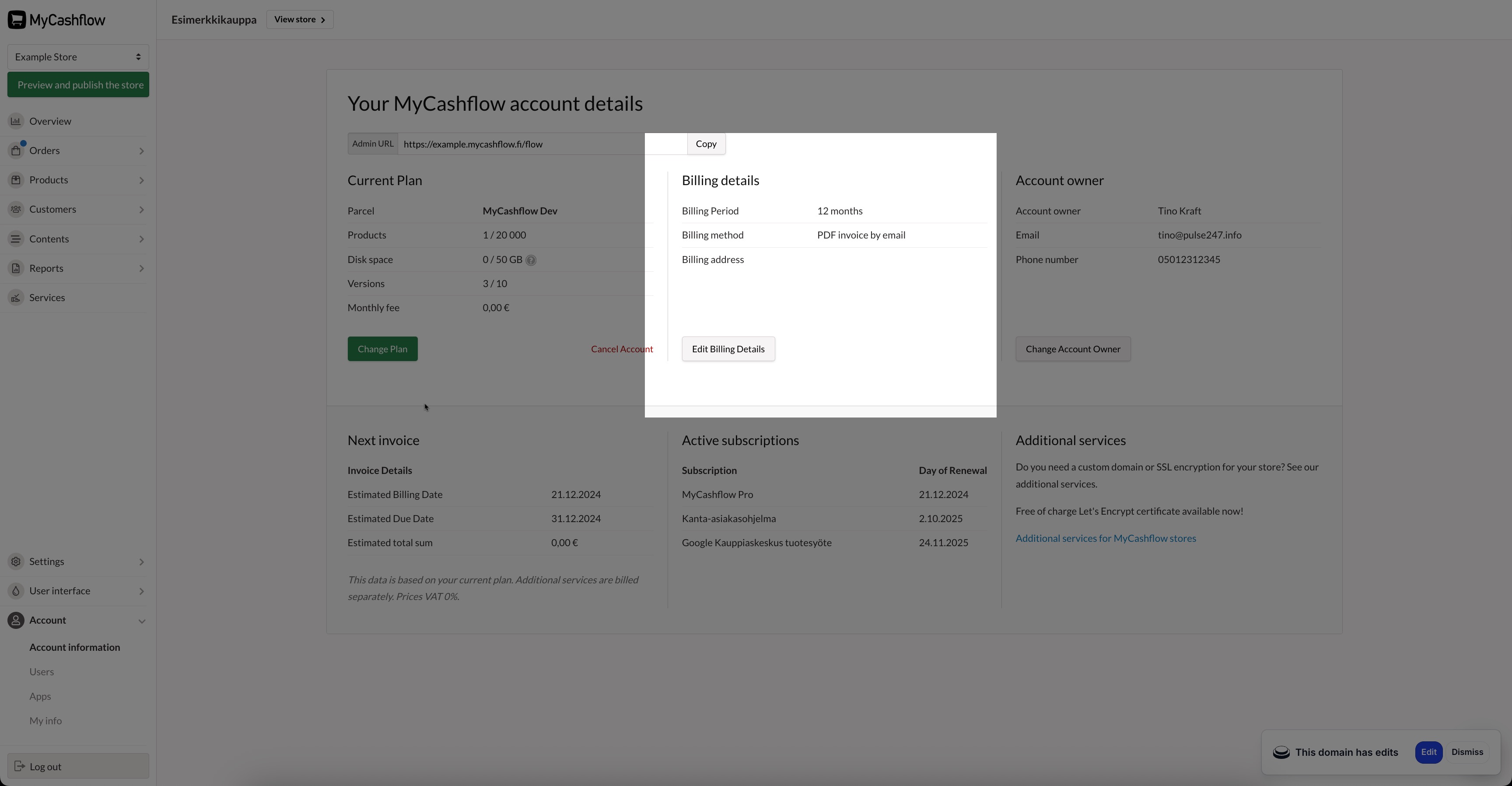
Press the button to add billing information. Enter your company information here and choose a billing period and method that suits you.
