

In order for customers to order products from your online store, you need to set up shipping methods. This quick guide chapter covers the setup of a logistics integration, the creation of shipping methods, and the defining of shipping costs.
Installing a logistics integration and creating a shipping method
In this article, you will create the first shipping method for your online store, and define its shipping costs. The result is a shipping method that allows the customer to order the product added in chapter 2 of the quick guide from the online store.
1/4: Selecting an integration
The online store needs a logistics partner to deliver the shipments.
The most convenient way to manage e-commerce logistics is a logistics integration, which is an automatic interface between the e-commerce system and the logistics company's system. With the help of an integration, you can
- display the logistics company's pickup point menu at the online store checkout
- print the logistics company's own address and return labels from the admin panel
- transmit shipment information to the logistics company with the press of a button.
Start defining shipping methods by selecting the most suitable logistics service for you and register as a customer on the service's website.
Recommendation:
With the Shipit extension, you can access the services of several different logistics companies (e.g., Posti, Matkahuolto, PostNord) with a single contract, allowing you to easily send orders both domestically and internationally.
The setup of the service is effortless, as you can register as a customer on the admin panel's page.
In addition to Shipit, the following logistics integrations are also available:
2/4: Installing a logistics extension
The integration is installed as an extension in the online store. The pricing of most logistics integrations is based on an order-specific commission.
Once you have registered as a customer with the logistics company of your choice, you can enable the designated logistics extension in the online store:
- Go to the admin panel's page.
- Here, find the logistics service you subscribed to (e.g., Shipit).
- In the extension settings, enter the credentials you received from the logistics company during registration.
- Save the extension's settings.
The logistics integration is now ready to be used when you add a new shipping method.
3/4: Creating a shipping method
After installing the logistics integration, you can add a shipping method that uses it to the online store:
The shipping method is not yet ready for use; next, its shipping costs must be determined.
4/4: Determining shipping costs
In MyCashflow, the shipping costs charged from the customer are determined in tiers, so that they increase with the weight of the order. This is how you can use the same shipping method for shipping orders of different sizes and charge the customer varying shipping costs based on the order's weight.
Shipping costs do not have to match the pricing of the logistics company. You can set costs that suit your own needs. Customer satisfaction is also good to consider in the costs.
You can determine the shipping costs as follows:
Once you have defined the shipping costs, the shipping method is ready for use in your online store.
Using the shipping method in the online store is examined in more detail in chapter 9 of the quick guide.
Package sizes and selection of shipping methods for the order
The shipping methods visible to customers at checkout are automatically selected based on the weights and package sizes of the order products. This ensures that only shipping methods capable of shipping all order products are visible at the online store checkout.
For example:
- The store has three products:
- Product 1, with a package size of Letter
- Product 2, with a package size of Large letter
- Product 3, with a parcel size of Parcel
- Letter: select only Letter in the package sizes
- Large letter: select package sizes Large letter and Letter
- Parcel: select Parcel, Large Letter, and Letter in the package sizes
Also define the weight limits and shipping costs according to the weights of the products. For example, if a 500 g letter is delivered at a price of €2.90, set the maximum shipping costs for 500 g. If that shipping method were also available up to one kilogram, but the price would be higher, set the maximum weight limit to 1 kg.
If no shipping method supports the package sizes of all the products in the order, it is not possible to complete the order and a warning will be displayed at checkout when selecting the shipping method.
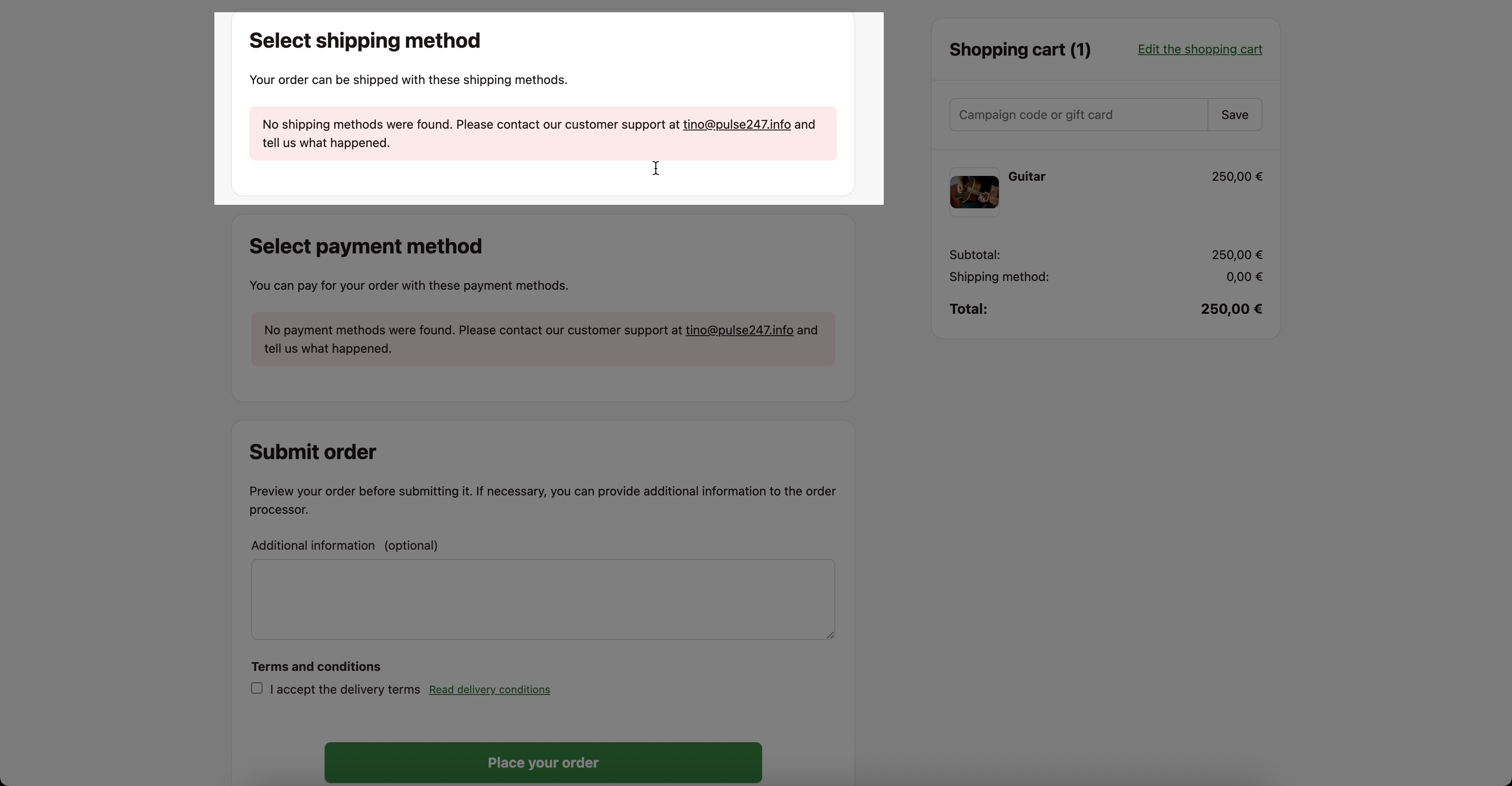
When creating shipping methods, the following should be taken into account:
- Keep track of your products' package sizes.
Customers can order several different products at the same time. The online store should have shipping methods serving package sizes for all products your customers can order.
- Keep track of the weights of your store's products.
Note that a single order can include several units of different products. The weight limits of shipping methods should be dedfined accordingly.
- Do you plan to ship abroad?
If necessary, select a logistics service suitable for international shipments and allow all countries to which you intend to send products for delivery methods.
Additional information
See also:
- Instructions for defining product-specific shipping methods
Sometimes in an online store, it may be necessary to specify, for example, free shipping only for certain products or to allow a specific shipping method to be used only with certain products.
- Using pickup points
- Using postal code restriction
