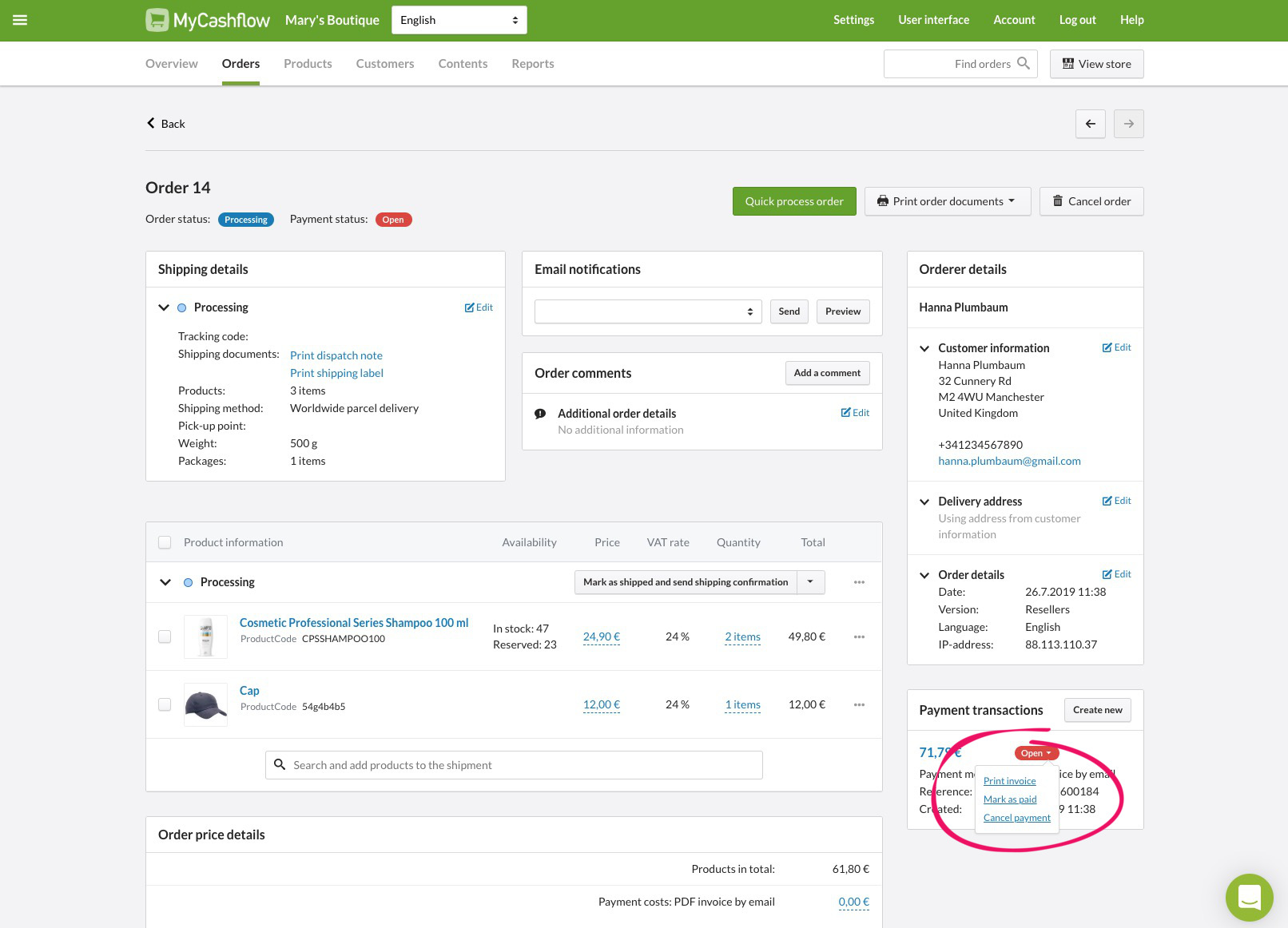
When you process orders, you must mark payments that have been paid as paid and nullify payments that haven’t been paid.
After you’ve received a payment from a customer, mark it as paid when you process the order. You can also cancel the payment transaction if, for instance, it was created by mistake. In this way, payment transactions remain up-to-date in your online store.
When you mark a payment as paid or nullify it, its payment status will be updated automatically.
If you do not mark the payments as received. they do not appear correctly on reports.
When necessary, also see how to make refunds to customers.
If online payment services (such as Klarna Payments or Paytrail) are used for order payments, payments do not need to be separately marked as received.
However, in case of some services, you may have to activate payments.
To learn more about processing online payments, see the help articles for relevant services.
You can mark payments as having been paid or cancel them in three different locations:
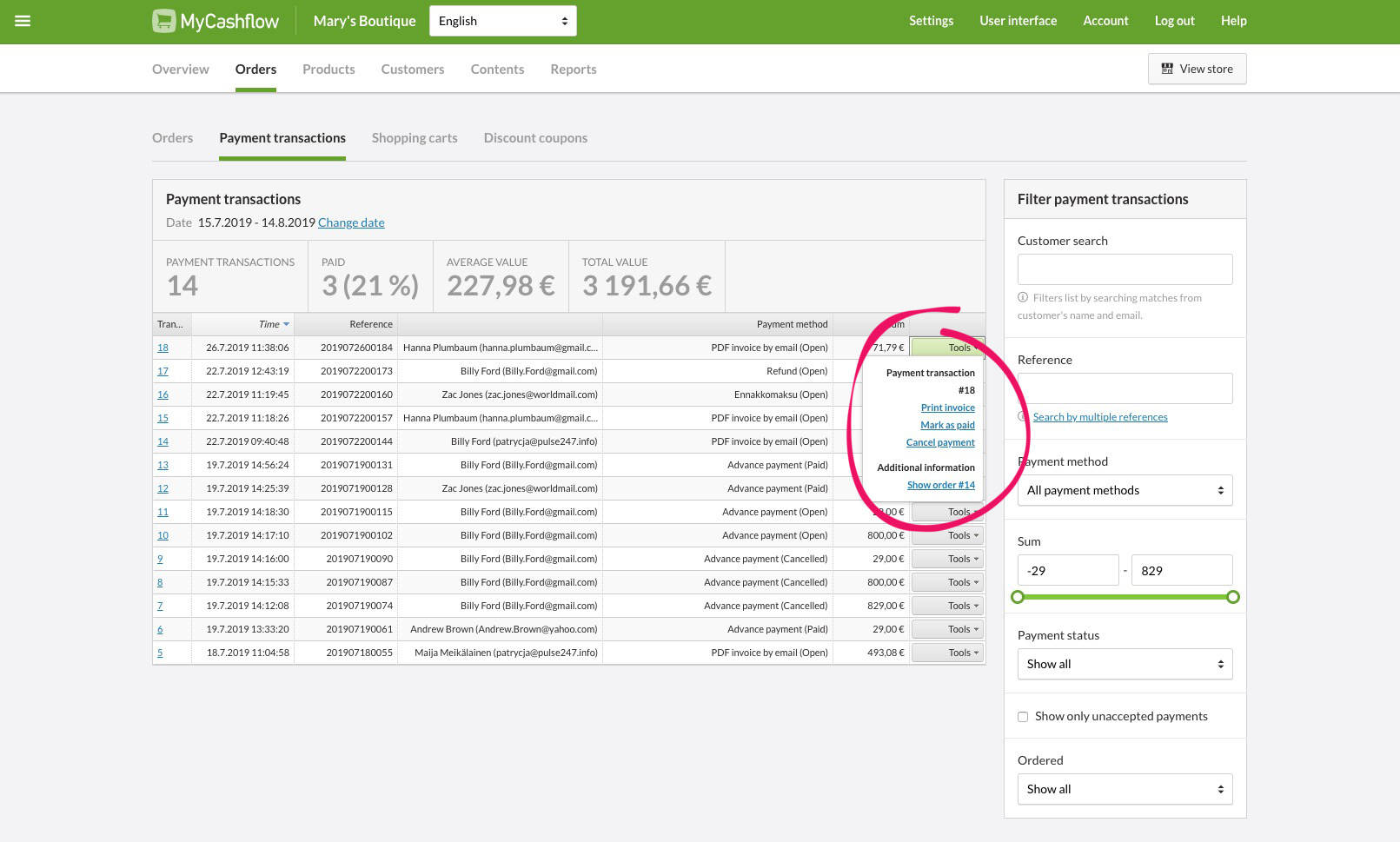
1. On the transaction list
page includes links for cancelling or marking payments as paid in the Tools menu in the right edge of the payment transaction row.
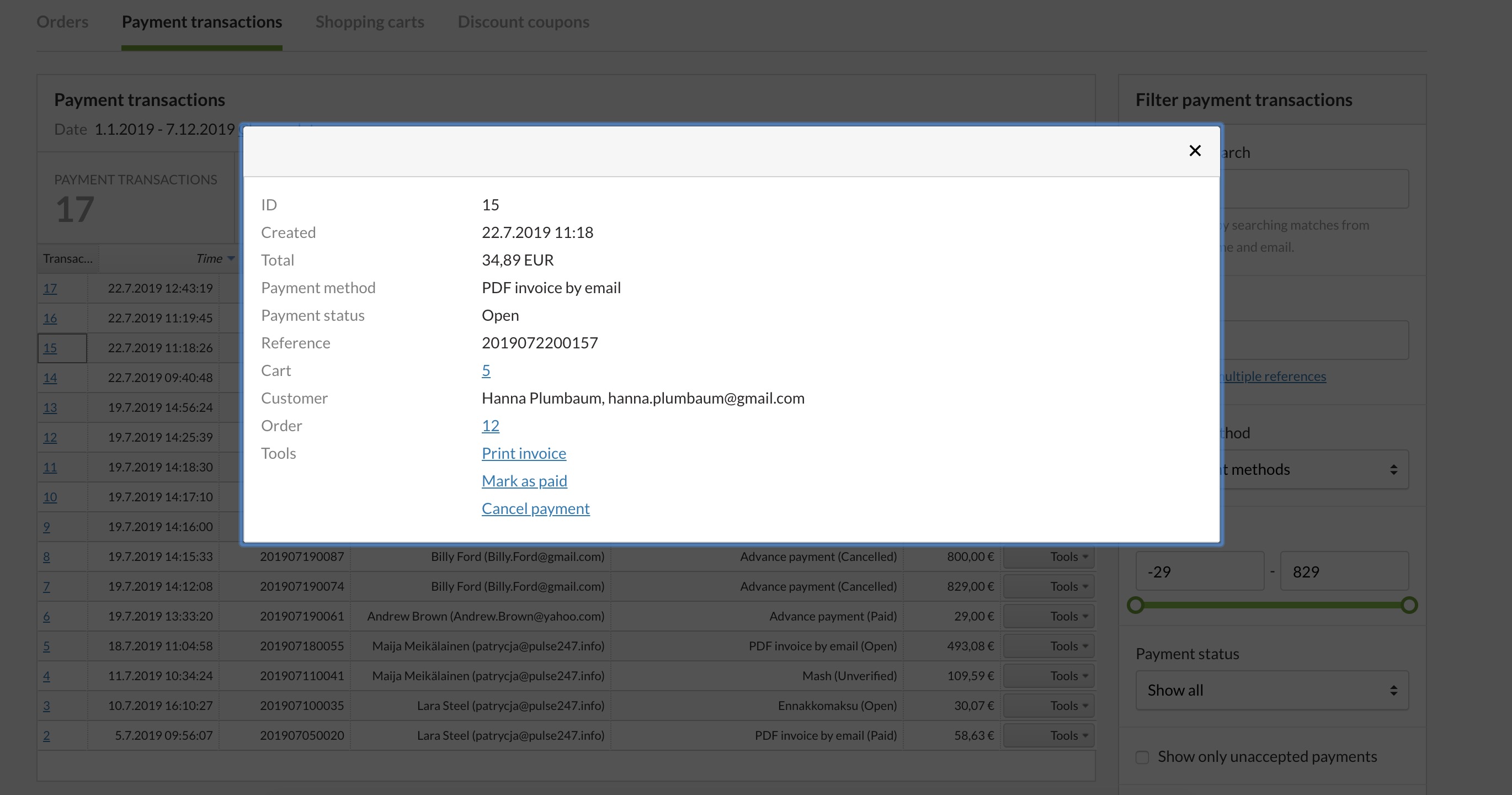
2. In the transaction details
When you open a payment transaction from the list on the page, you will see the links for marking payments as having been paid or canceling them in the Tools section.
3. On the order page
You can also find payment transaction tools on the order page, in the right-hand Payment transactions menu.