

The default theme includes pre-positioned banner areas, the content of which is based on the banner and theme settings.
In this article, the default theme banner areas presented cannot yet be managed with the new Fluid 2.0 theme theme editor; instead, additions and changes must be made to the banners and theme settings.
Large banner on the front page
At the top of the homepage, there is a banner carousel that includes the first 4 banners from the group frontpage-main. The visitor can browse them using the carousel buttons, but you can also set the banner to change automatically every few seconds.
The banner's title and text are located in the center of the image.
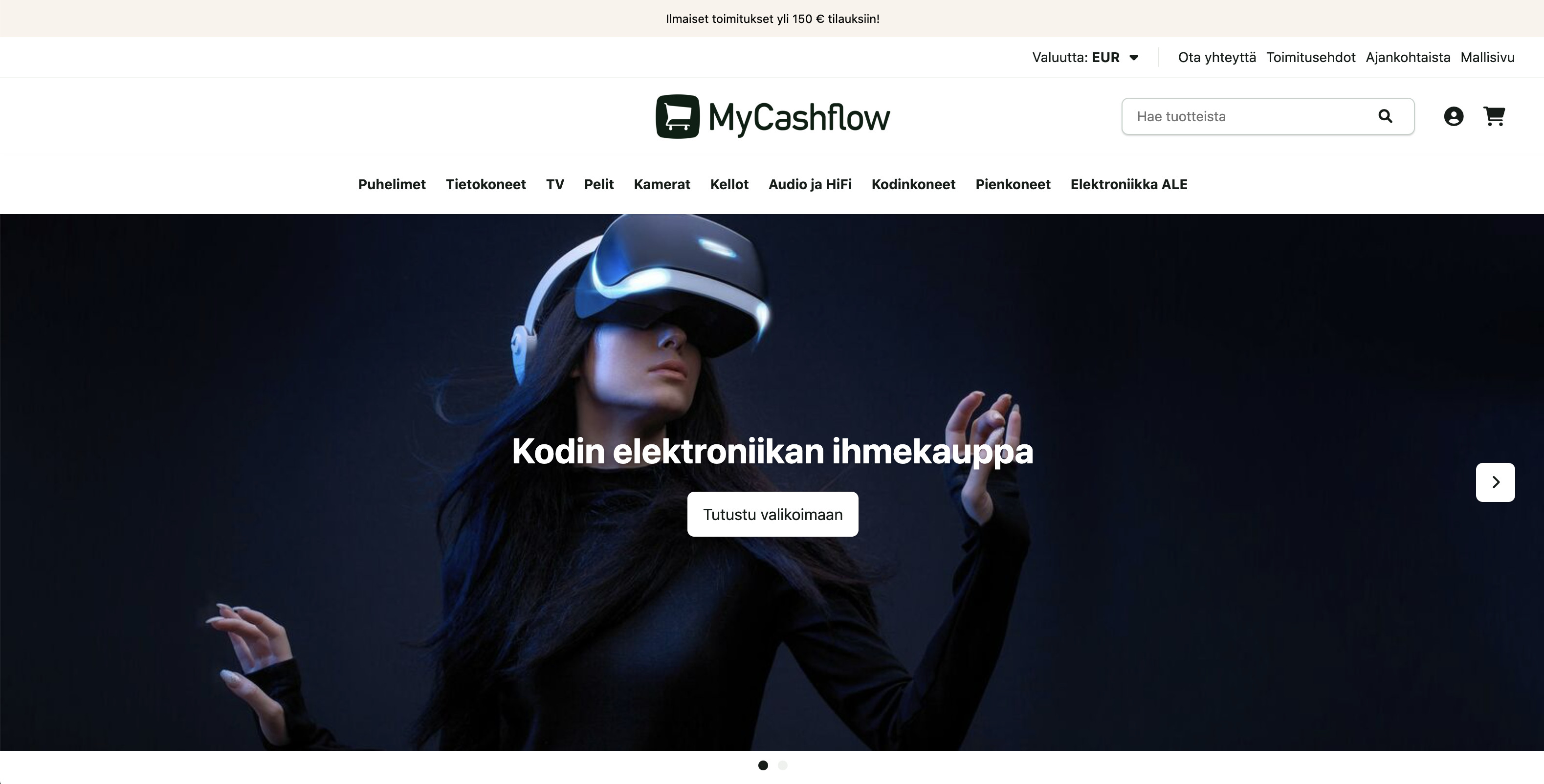
- Location in online store: front page
- : frontpage-mainBanner group code
- Recommended size for a banner image: 2000 x 700 px / 1:0.35 (in mobile size, the image is cropped from both edges and the aspect ratio is 2:1)
Page top notice bar
At the top of each page of the online store, there is a text-based notification bar displaying the first banner of the notification-bar group. The notification banner can contain a short announcement, for example, about a current topic.
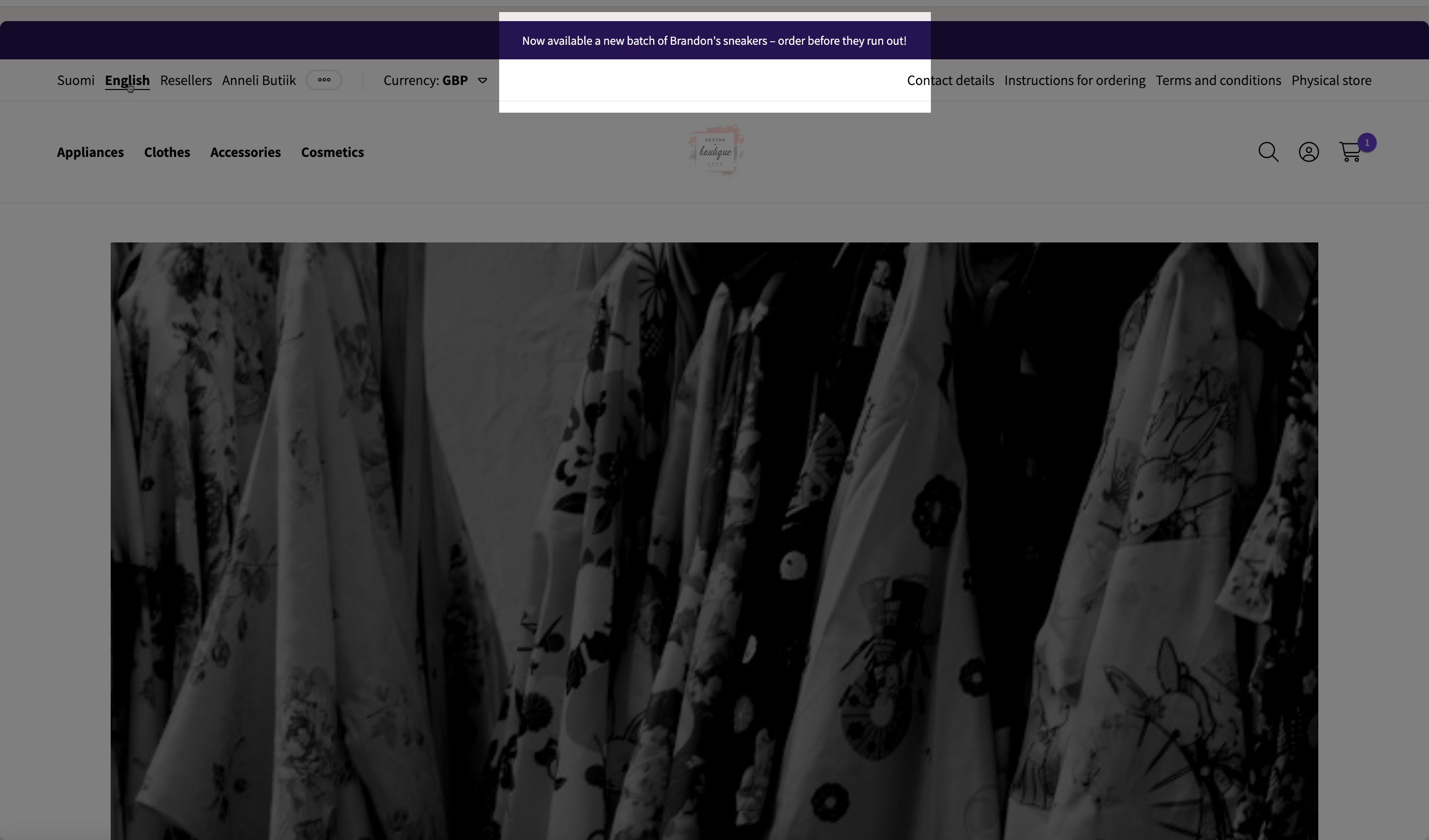
- Location in online store: at the top of all pages
- Banner group code: notification-bar
Social media buttons
The store's footer contains a banner area for social media links that belong to the banner group social-media-buttons. Each banner shows an icon or link text representing the linked service.

- Bluesky (https://bsky.app/profile/NAME)
- Discord (https://discord.com/invite/KOODI)
- Facebook (https://www.facebook.com/NIMI)
- Facebook Messenger (http://m.me/NAME)
- GitHub (https://github.com/NAME)
- Instagram (https://instagram.com/NIMI)
- LinkedIn (https://www.linkedin.com/company/NAME)
- Pinterest (https://www.pinterest.com/NAME)
- Threads (https://www.threads.com/@NAME)
- TikTok (https://www.tiktok.com/@NAME)
- WhatsApp (https://www.whatsapp.com/channel/CODE)
- X (https://x.com/NIMI)
- YouTube (https://www.youtube.com/channel/CODE)
- Write the name of an icon found in the Font Awesome library in the banner settings Name field and add the prefix fa to it (for example, to get a button that looks like a truck, write fa-truck as the banner name). In this case, use only small letters in the name.
This configuration method does not work with the Font Awesome library's brand icons.
- In the banner settings, select an Bannerimage file from your device as the icon.
If there is no icon, the default theme displays the banner name as link text.
- Location in online store: footer
- Banner group code: social-media-buttons
- Recommended size for a banner image: 280 x 280 px / 1:1
