Here you can learn how to implement Currency Converter's different functionalities in the theme for your MyCashflow online store.
Adding a currency selector to your store theme
MyCashflow's default theme includes an implementation for the currency menu as well as an easy-to-use setting to hide the menu.
You can add the currency selector menu to a theme with the {CurrencyNavigation} tag.
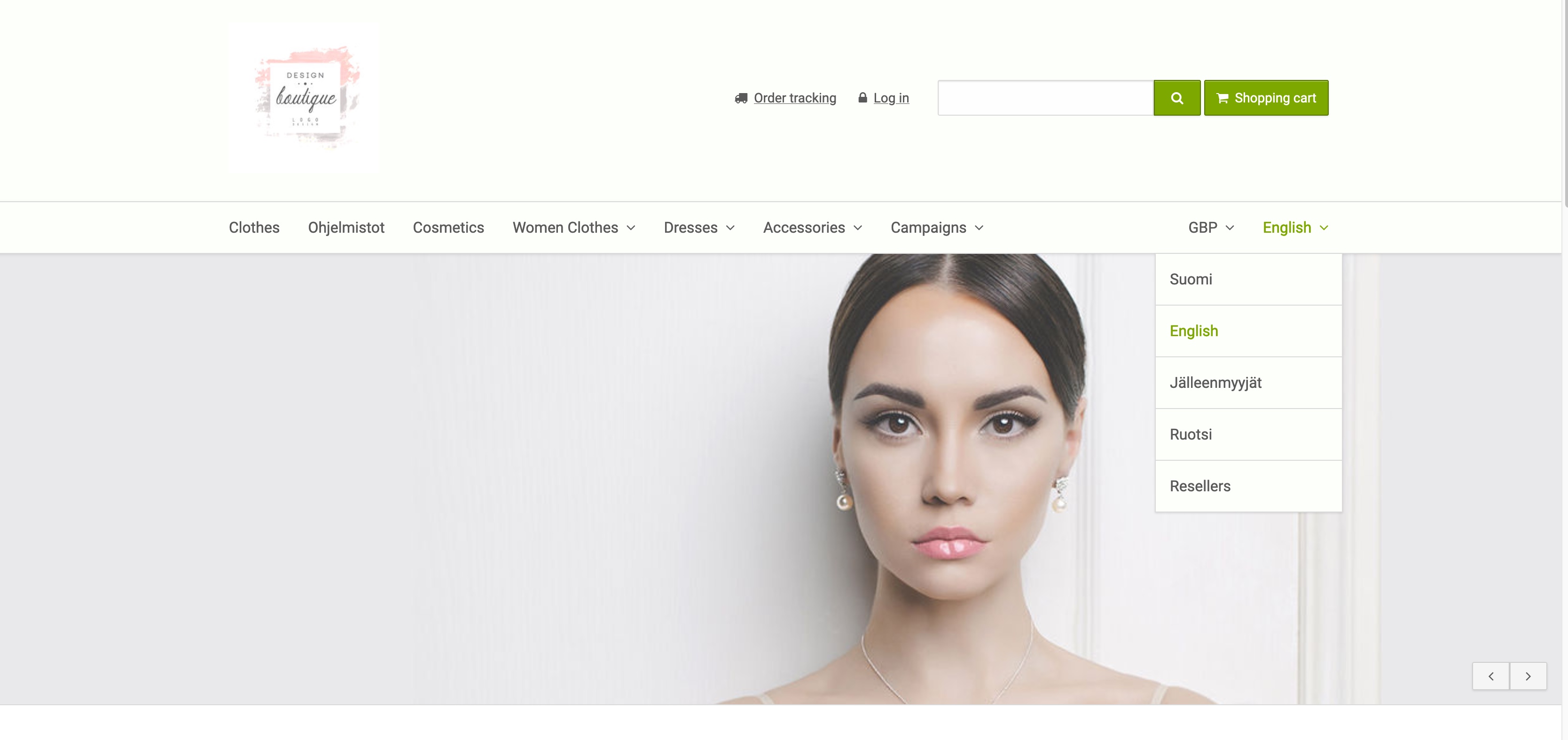
Below is an example of the implementation of the currency menu in the default theme.
{CurrencyNavigation( before: ' <div> <ul> <li> <a>{Currency}</a>', after: ' </li> </ul> </div>' )}The currency menu is formatted as a <ul> list, with the currently used currency set first using the {Currency} tag. Below, you can see an example of the menu's appearance.
Displaying converted product prices
The {ProductPrices} tag, often used for displaying prices, always outputs prices converted to the currency selected by the visitor. If you use other tags to display prices (e.g., {ProductPrice}), ensure that the tag has the attribute currencysymbol: true
{ProductPrice( currencysymbol: true )}Adding the currency notification to checkout
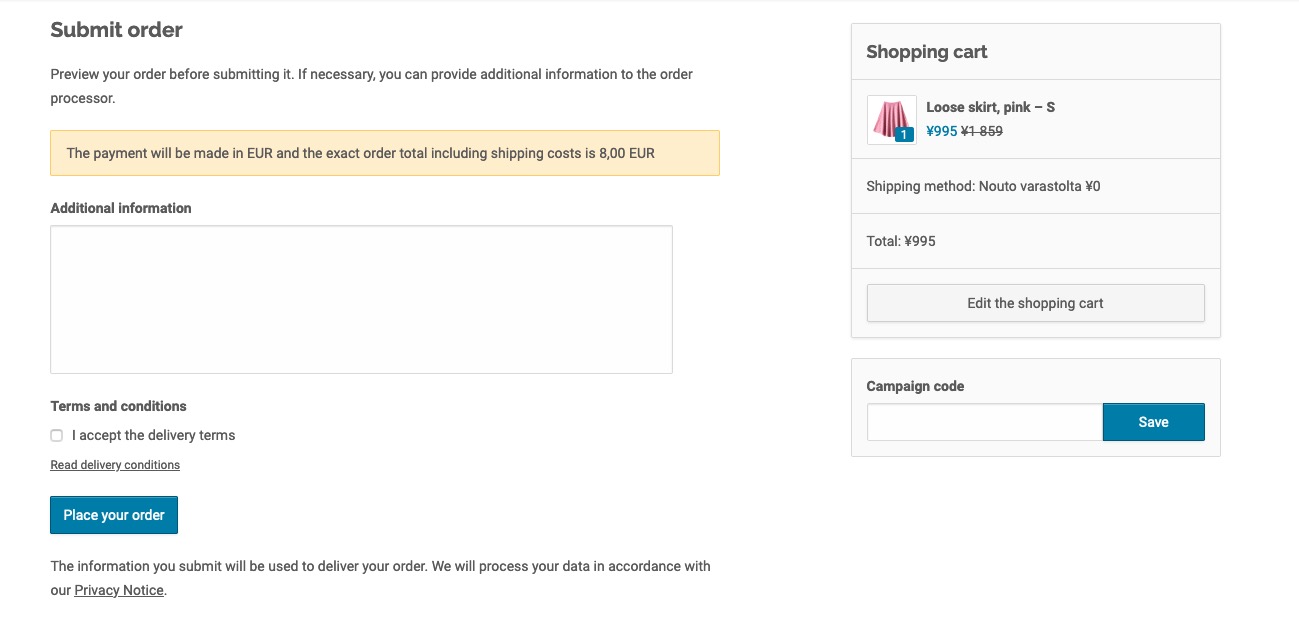
If the customer selects a currency other than the euro, MyCashflow's built-in single-page and multi-page checkouts will display a warning that the payment will be transferred in euros. The notification is added to a theme using the {CurrencyNotification} tag in the checkout page templates (e.g., themes/shop/THEME/checkout/singlepage.html).