

MyCashflow offers a new, more extensively customizable Fluid 2.0 default theme, which you can switch to from the old customizable default theme using the appearance copying feature.
The new Fluid 2.0 default theme lets you manage page content and structure more extensively. With the new layout tools, you can assemble, for example, the homepage of the online store from content sections you want (e.g., various banner elements, product lists, and text areas).
If you are using MyCashflow's previous default theme, you can switch to the new Fluid 2.0 theme by copying the appearance in the admin. The function transfers the old theme settings and banners from one version to another.
Read more about managing the appearance.
It is not possible to copy the appearance from other themes.
Only MyCashflow's old customizable default theme supports appearance copying, so if you are using a different pre-made theme or a theme customized for your own online store, copying will not work.
However, you can install the new Fluid 2.0 theme on a development version and use it to create a new, easily customizable appearance for your online store.
The transition is done by first copying the old theme to a closed development version that uses the new Fluid 2.0 theme, where the theme can be developed to be ready for publishing. When the theme is ready, it is finally copied back from the development version to the public version.
- Copy your online store's old Fluid-based theme to the development version with the following copy settings:.
- Select the old version that uses the old customizable Fluid default theme as the source version.
- As the target version select the development version that uses the new Fluid 2.0 default theme.
- If necessary, also copy the visibility of the banners so that the appearance matches the previous one as closely as possible.
- Click the Copy button to complete the copying.
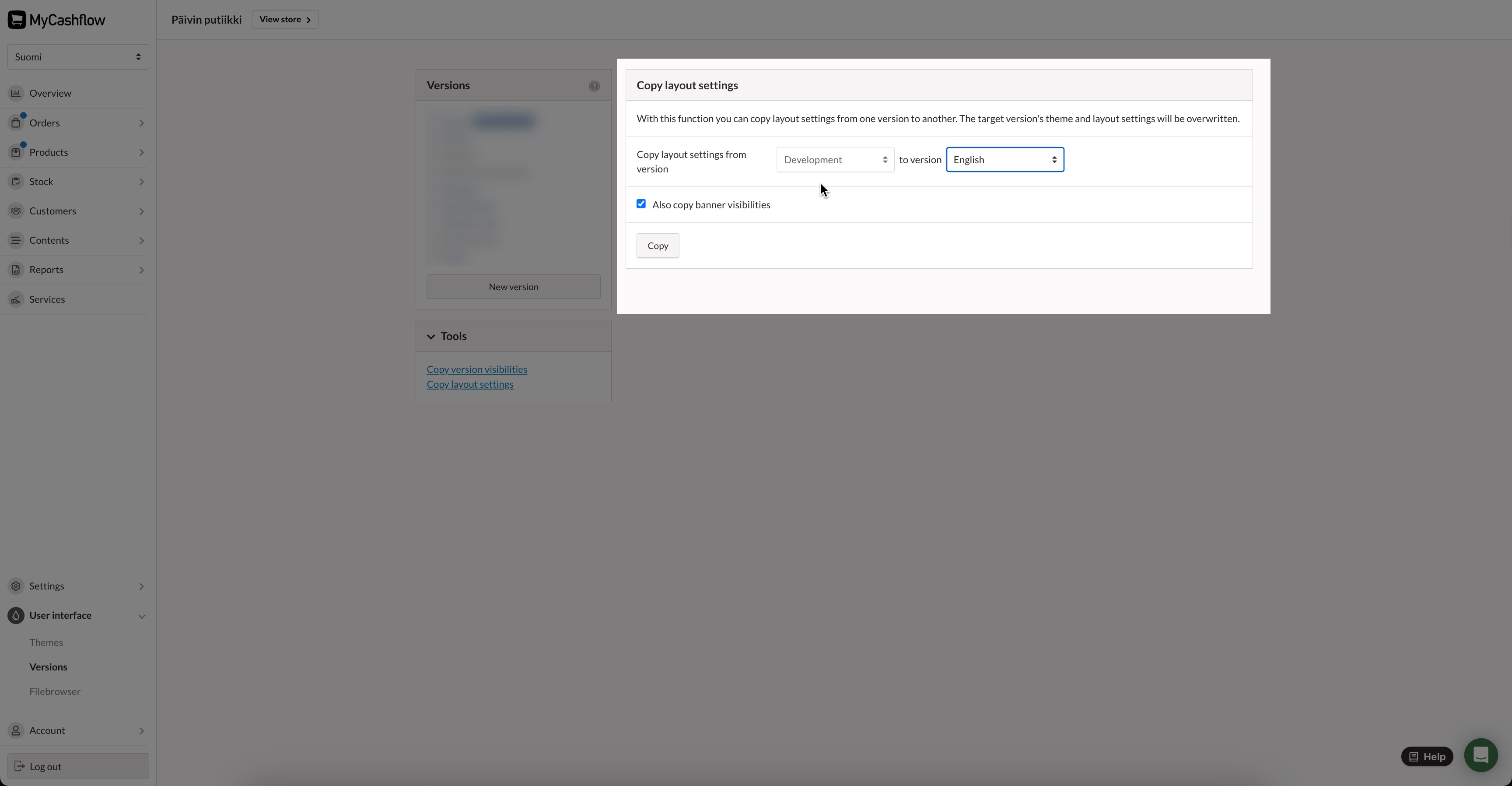
The development version now uses an editable default theme, whose appearance should match the source version.
Now that you have a new customizable default theme, you can make changes to the appearance at any time using the theme editor in the admin panel.
See also a step-by-step guide to developing a theme with the appearance editor.
